GIFs on LinkedIn: How to Use Them Without Looking Spammy
TL;DR
GIFs work on LinkedIn posts, comments, articles, and DMs.
They're one of the easiest ways to stand out in a text-heavy feed.
This guide explains four easy methods to add GIFs, suggested size specs, the strategy behind using them without looking like a bot, and how tools like Outly can handle GIF-powered outreach at scale.
Are you looking to grow your LinkedIn audience but don't know where to start?
Don't worry, you're not alone!
That is why I am here to share the secret hacks for using GIFs on LinkedIn (yes, you can use GIFs on LinkedIn) to grow your audience , a feature many people underestimate!
We'll talk all about-
✴️ Why using GIFs is helpful ,
✴️ Different ways to use them with a step-by-step guide ,
✴️ How I used them to grow my LinkedIn network to 10k+ followers,
✴️ Common GIF issues and their solutions , and
✴️ Why you shouldn't be missing out on them!
If you want to sit back and watch your LinkedIn network grow like crazy with minimal effort , you're at the right place!
Grab your coffee and some snacks because we have some information to discuss today.
Let's go!
Why use GIFs?
To put it simply... GIFs are fun.
That should pretty much be the answer to your question, but that's not it.
Because they're fun, they're also far more engaging for your audience.
And the only war on LinkedIn is the war for attention (well, other than the wars going on in the comment section.)
Graphics like images, GIFs, and videos give your audience a reading break from too much text and grab attention instantly.
We all get bored with too much text, don't we?
But where do you use them?
Wherever you need to engage with your audience on LinkedIn, you can use them.
And where can you engage on LinkedIn?
LinkedIn posts and articles, DMs, and comments.
Simple, isn't it?
But let's get into some real talk.
Everyone knows how to share images and text, but GIFs!?
How to Post GIFs on LinkedIn: 4 Easy Methods (Size Guide Included)
Ever since LinkedIn allowed sharing GIFs, there has been no looking back.
You can talk, express, and be witty at the same time.
And if you're curious and have been looking around for a guide on how to use them, here's your cheat sheet:
1 Adding GIFs on a post
Y'all ever notice how your brain processes images vs. text?
The human brain is wired to recognize visuals faster than text.
We process graphics way faster than a piece of text.
And let's be honest, GIFs are images, but better!
If that's not your sign to use them, then idk what is.
So here's how you can utilize them on a LinkedIn post-
- Go to Giphy , Tenor , or your preferred website for GIFs.
- Right-click on the GIF you like and save it to your computer.
- Now, head on to LinkedIn and locate 'Start a post' from the top.
- Click on 'Media.'
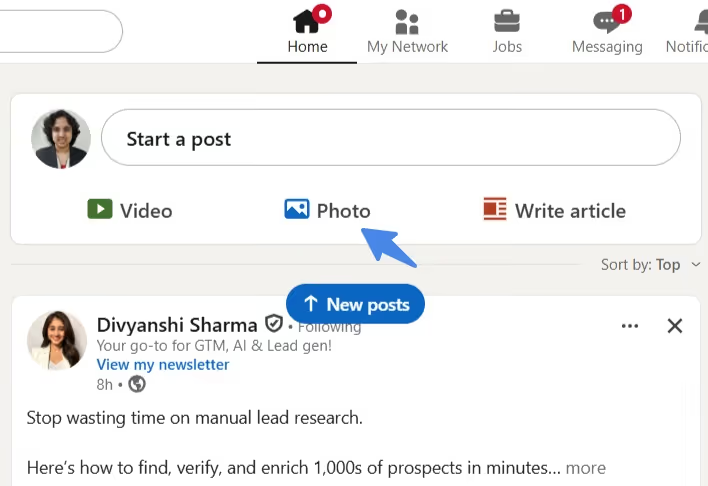
- Now add your GIF from your computer and share your thoughts.It's simple, isn't it?
However, posts are not the only place where you can share GIFs on LinkedIn.
There's more!
2 Adding GIFs in comments
So, here's the thing: commenting is a very subtle way to make someone aware of your presence, without being intrusive.
And if you don't know what to comment, GIFs are your lifeguards!
Here's what you need to do if you wanna comment one:
- Go to Giphy / Tenor and download your GIF.
- Now open LinkedIn and go to the post you want to comment on.
- On the right-hand side of the comment bar, you'll see the image icon.\
.avif)
- Click on that and select your downloaded GIF.
- Add your comment and post!
See? It's literally a 5-step process, that's it!
And hey, I'm not done yet!
Remember, I told you, you can DM someone with GIFs, too?
Wanna learn how?
Keep reading.
3 Slide Into LinkedIn DMs… With a GIF!
Another super cool LinkedIn feature that helps:
☝🏼 Catch your dream customers' attention by adding a fun element, and
✌🏼 Personalize your message so it doesn't look (and feel) generic.
Both are essential for increasing reply rates.
And luckily, LinkedIn has partnered with Tenor , which allows you to search for GIFs within LinkedIn Messaging as well as access trending GIFs, which can make your messages 10x more interesting.
So here's how to DM them to your prospects-
- Go to LinkedIn and log in to your account.
- Now open the chat of the person you want to send a message to.
- Type in your message, and from the 'GIF' button below, select an appropriate GIF and hit 'send.'
.avif)
Done in 3 steps ✅
Is there any other easier way to boost your responses?
I don't think so!
Here's the kind of responses my friend Ian got DM-ing his dream customers with a customized GIF!
.avif)
But I get what you're thinking…
"Saurav, how the hell do I DM GIFs to every single prospective customer?! It'll take me hours everyday."
Well well, the good news is: there is a solution to every problem!
And the solution to your problem is - Outly !
What is it, and how can it help?
While we'll get into the details later, know this:
Outly can effectively handle the task of sending personalized messages with GIFs to hundreds of your dream customers every week without you having to lift a finger!
Curious? Keep reading on, and we'll see more on this later.
4 Adding GIFs to an Article
GIFs in articles work a little differently.
You can use GIFs as a header image or embed them directly in your LinkedIn article to make your content stand out!
But...
On external pages, it'll be static, so it might not grab much attention!
But either way, we're gonna use them because they just work.
So here's how you can add them to your articles-
A. For the cover image:
- First, download a GIF from your preferred website.
- Now go to LinkedIn and select 'Write an article.
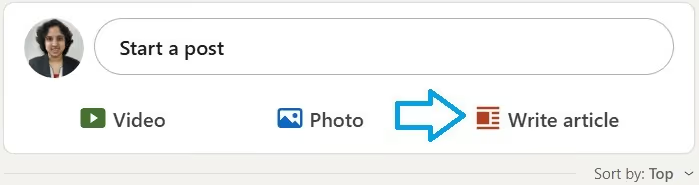
- Click on 'Upload from computer' right above the 'Title' head.
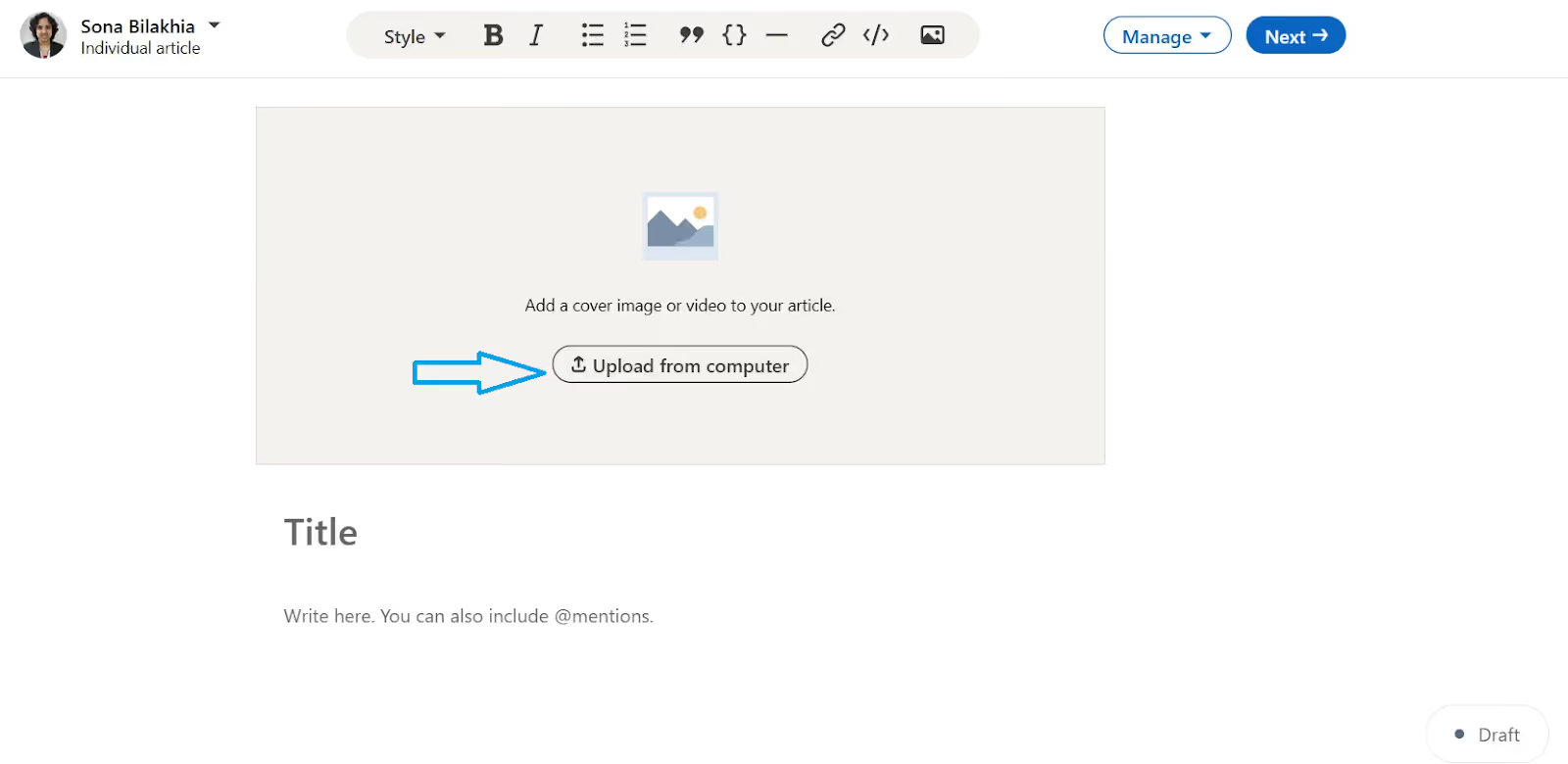
- Now, select the GIF you downloaded, and it's done!
B. To add one within the article:
- First, download your GIF.
- Then, click the 'Image' icon from the top.
.avif)
- Now, select your GIF, and you're good to go!
- Alternatively, you can copy-paste its link, and it will be animated inside your article!
See? How simple it is!
Please note:
One thing to keep in mind: GIFs in articles must be under 400 frames, or they won't animate.
Most GIFs from Giphy or Tenor are well within this limit, but if you're using a custom or longer GIF, check the frame count before uploading.
How I used GIFs to grow my LinkedIn Network!
Now you know how to use GIFs on LinkedIn in different ways, but what's the right strategy?
Would you be able to grow your network on LinkedIn just by using it randomly?
Well, no.
You must use them correctly without spamming people because spam is spam, be it text messages or GIFs.
So what is this'correct'way?
Here's a cheat sheet on how I used GIFs to grow my LinkedIn network -
Know your audience
Knowing who your target audience is should be your priority before you start engagement.
It helps you engage better and also guides the next steps.
Imagine sharing a super cool post or article on LinkedIn with an awesome GIF.
However, if the post is not targeted towards the right people.
You're not gonna get the engagement you want.
So it's a must that you know what type of people you want to engage with and share GIFs accordingly.
I wanted to target founders of tech startups who want help with sales, so I posted content with GIFs that caught their attention.
Use Relevant GIFs ONLY
This one's a no-brainer.
Sharing relevant content but irrelevant GIFs is, again, gonna take you nowhere.
Whether you're sharing them on:
- Posts/ Articles
- DM
- Comments
Here's an example of a company called Maildoso sharing a relevant GIF on one of my posts in a comment:
.avif)
Your GIF should relate to the content and/or your brand value; otherwise, what's the point, right?
Outly can help you automate your LinkedIn outreach and personalize your messages with super cool GIFs while you rest on your couch.
Cool, isn't it?
Don't believe me?
Diversify: Don't Be a Bot
Where to drop gifs on Linkedin without looking like a bot / how to use gifs across Linkedin (without overdoing it)
Now that you know LinkedIn supports GIFs in different formats, use them everywhere!
But know this: spamming someone's post with comments and GIFs is not gonna work.
If you really want to get their attention, try this:
👉🏼 Comment on 3-4 of their posts with engaging GIFs over a space of 3-4 weeks , and
👉🏼 DM them with a personalized message and a super cool GIF! (after sending a personalized connection request or an InMail )
You can also add them to some of your LinkedIn posts to make them fun for your prospects to read.
And that's it!
That's all you gotta do for some attention.
And if it gets tedious to comment and DM, you can rely on Outly to do the hard work for you while you reap its benefits.
It's got an AI feature that writes highly relevant comments in the tone you want it to, in just one click!
.gif)
It actually works.
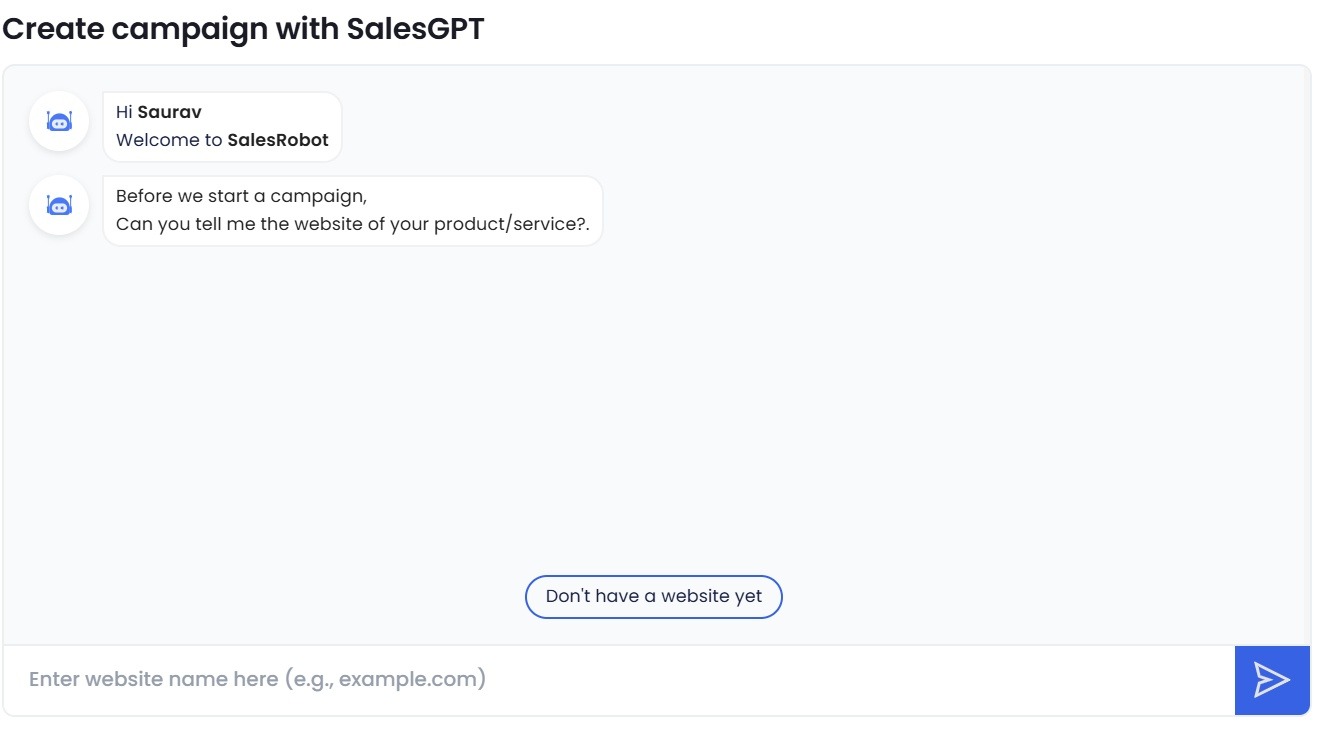
Additionally, SalesGPT can build an entire outreach campaign for you in under five minutes - just describe your target, and it handles the rest.
Stay Professional: When and Where GIFs Make Sense
I shouldn't be telling you this, but adding them for humor doesn't mean crossing boundaries.
LinkedIn is a professional platform , and we should keep it that way.
You don't need to share offensive GIFs that might cause trouble .
Always, and I mean always, make sure they are appropriate and relatable.
Don't just go sharing any GIF you like. If there's no need for one, avoid using them.
Remember, not every meme-worthy GIF belongs on LinkedIn. But that doesn't mean you can't have personality!
Industry-Specific Considerations
While GIFs can work across many industries, they deserve more thought in certain sectors.
If you're in legal, financial services, healthcare, or government sectors, choose your GIFs with extra care.
A funny reaction GIF might work great in tech or creative fields, but could raise eyebrows in more conservative industries.
vs
Reading the Room
Pay attention to the conversation's context. Is it:
-
A celebratory post about a team achievement? GIF away!
-
A discussion about serious industry challenges? Maybe skip the silly tripping, baby.
-
A first outreach to a potential client? A subtle, professional GIF might work better than an over-the-top one.
The GIF-to-Text Ratio
Like seasoning in cooking, GIFs should enhance, not overpower. A thoughtful pattern might be:
- In posts: 1 GIF per message is usually sufficient
- In comment threads: Space them out rather than spamming with multiple GIFs

- In DM conversations: Use them to put some emphasis on the key points instead of a way to replace an actual conversation
How to Troubleshoot GIFs on LinkedIn: Common Issues and Solutions
So you're saying, you added a GIF, but it isn't displaying correctly?
I get it; we've all been there.
And isn't it annoying?
Trying again and again to get that perfect post, but it's just not happening.
But don't worry, I've got your back.
I'll answer two burning questions about GIFs on LinkedIn so you won't encounter a similar problem again.
Ready?
Let's dig in!
What's the Recommended GIF Size on LinkedIn?
First things first:
If your GIF isn't displaying as it should despite numerous efforts , here's what you need to check.
LinkedIn treats them as images , so there's a recommended size for them for best results. Let's talk about that:
- For posts: 12001200 (square), 1200628 (landscape) and 1080*1350 (portrait)
- For article header: Commonly 1200644 or up to 9201080 if you prefer higher resolution
- For article images: 1200*644
Once you get these right, your GIFs will look way smoother.
Additionally, LinkedIn has a maximum file size limit of 5MB for GIFs.
If your GIF isn't displaying properly, it might exceed this size limit. You'll need to compress it before uploading.
For optimal performance, remember these specifications:
- Maximum file size: 5MB
- LinkedIn treats GIFs as image content, supporting formats including GIF, PNG, and JPG
- If your GIF is too large, consider using an image compressor tool to reduce its size
Can I Use GIFs on my LinkedIn Profile Picture and Banner?
Unfortunately no.
LinkedIn doesn't allow GIFs to be used as banner or profile images.
But you can use an Instagram story like video for your profile picture if you have creator mode on.
But hey, who needs them on your profile when you can already do so much with them?
If you strategize correctly, nothing can stop you from getting all that attention!
Top 3 Benefits of Using GIFs on LinkedIn
GIFs are one of the most underrated tools for boosting engagement on LinkedIn.
I know I've bragged about it enough throughout this blog.
So why should you really consider using them?
I mean, it does take time to hunt for the perfect one and resize it to get the perfect GIF on display.
So here are not one, not two, but three reasons why you should actually consider putting in the hard work:
1️⃣ It grabs attention like nothing!
Ngl, they really do.
Have you ever seen a GIF you didn't like?
Plus, there's one for every mood and expression.
Just think of your favorite character and hunt down their GIFs, and you have an extremely high chance of finding the perfect one.
Who would wanna miss out on that, huh?
2️⃣ Conveys your message quickly
So here's a fun fact for you -
Did you know that an average reader's attention span is 8 seconds?
Now, I don't know about you, but for me, GIFs are the easiest way to convey my message or at least give the idea of what I'm trying to sell.
It'll make them stay on your content a little longer, so they actually read and engage with it.
And trust me, they work better with those long comments and posts you're writing.
3️⃣ Icebreakers
If you've ever felt stuck while doing cold outreach and thought,"What do I say to them to get a reply?"
You could actually try a GIF.
It's less intrusive and will make your message shorter (and more engaging)
Imagine receiving a long sales message from one stranger and a short message with a GIF from another.
Who are you more likely to reply to?
Well, I would do the latter.
I know what you're thinking.
It takes real effort to frame messages for every single prospect.
And then following up with them.
Imagine doing this for not 5 or 10, but 100s of people!
But hey, remember I said earlier, there's a solution to every problem.
And the solution to your problem is…
It's Outly!
Worry not; this time, I'll tell you all about it!
You can use it to personalize your outreach messages with images and GIFs.
Well, link your LinkedIn account to Outly, and it will pull your prospects from multiple sources, such as Sales Nav, LinkedIn searches, custom imports, and more!
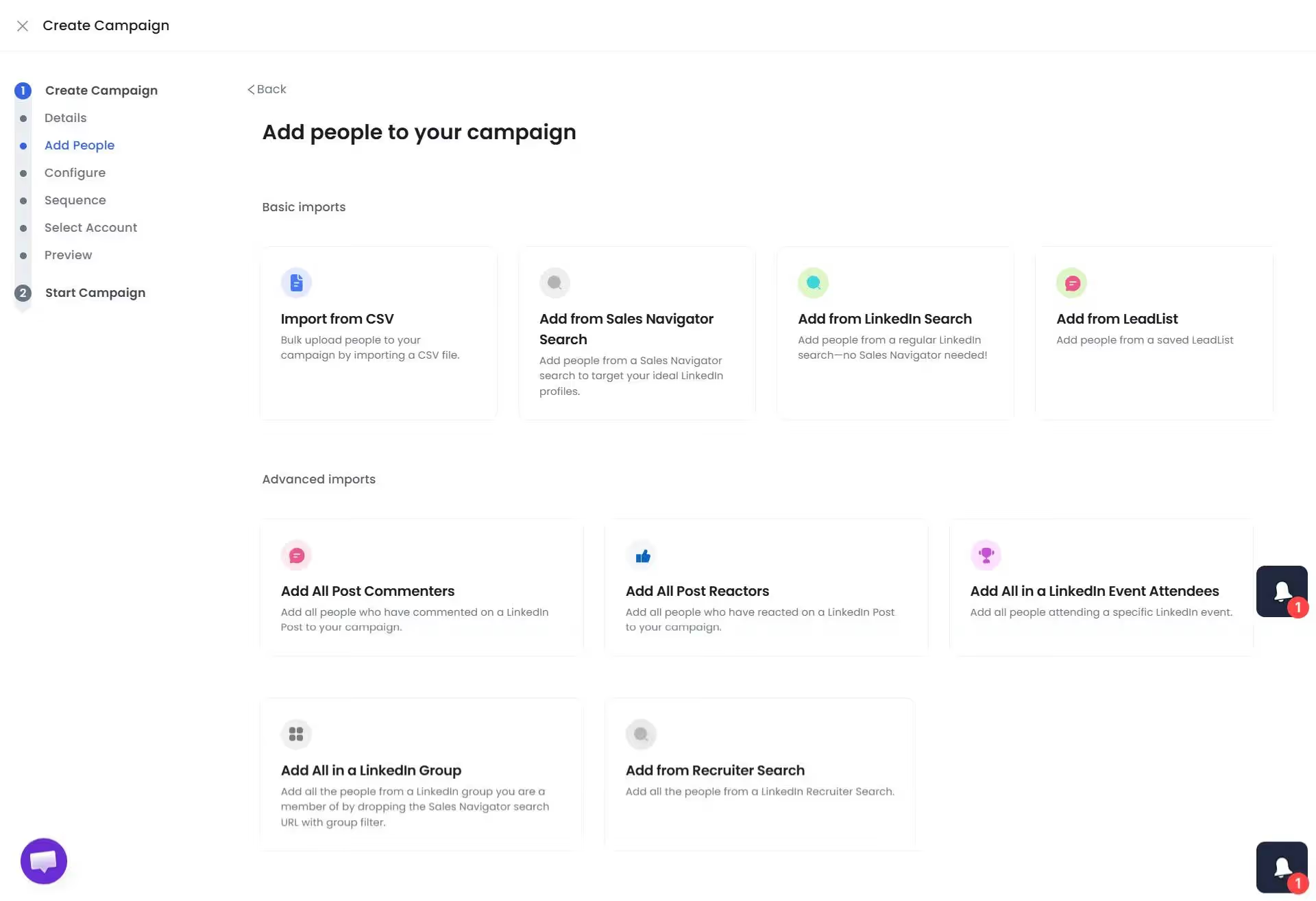
Then, you'll simply need to create a campaign to send messages and follow up with them, using either our templates or customizing your own.
And now, you just need to write some fun messages and start your campaign!
Before any message goes out, Outly's AI Message Scoring evaluates its quality and flags weak copy so you can fix it first.
Personalization is done with the AI Variables feature. The AI looks into your prospect's profile and takes notes on their recent activity.

For GIFs specifically, you can send personalized GIFs to hundreds of potential customers via Outly.
Our awesome GIF partners, Hyperise, has a detailed tutorial on how the GIF integration works.
And if you want to switch it up, Outly also lets you drop quick voice or video notes at scale.
This is done using AI voice cloning and AI video avatar messages used inside LinkedIn outreach.
The platform automatically pauses your sequence when a prospect responds with Smart reply detection while running Drip Campaigns .

They are perfect for standing out in busy inboxes and sounding genuinely human.
See how Outly makes even following up so easy?
Now, you can sit back and enjoy the lead flow! 😉
And when someone replies?
That's where Outly's AI Appointment Setter steps in.
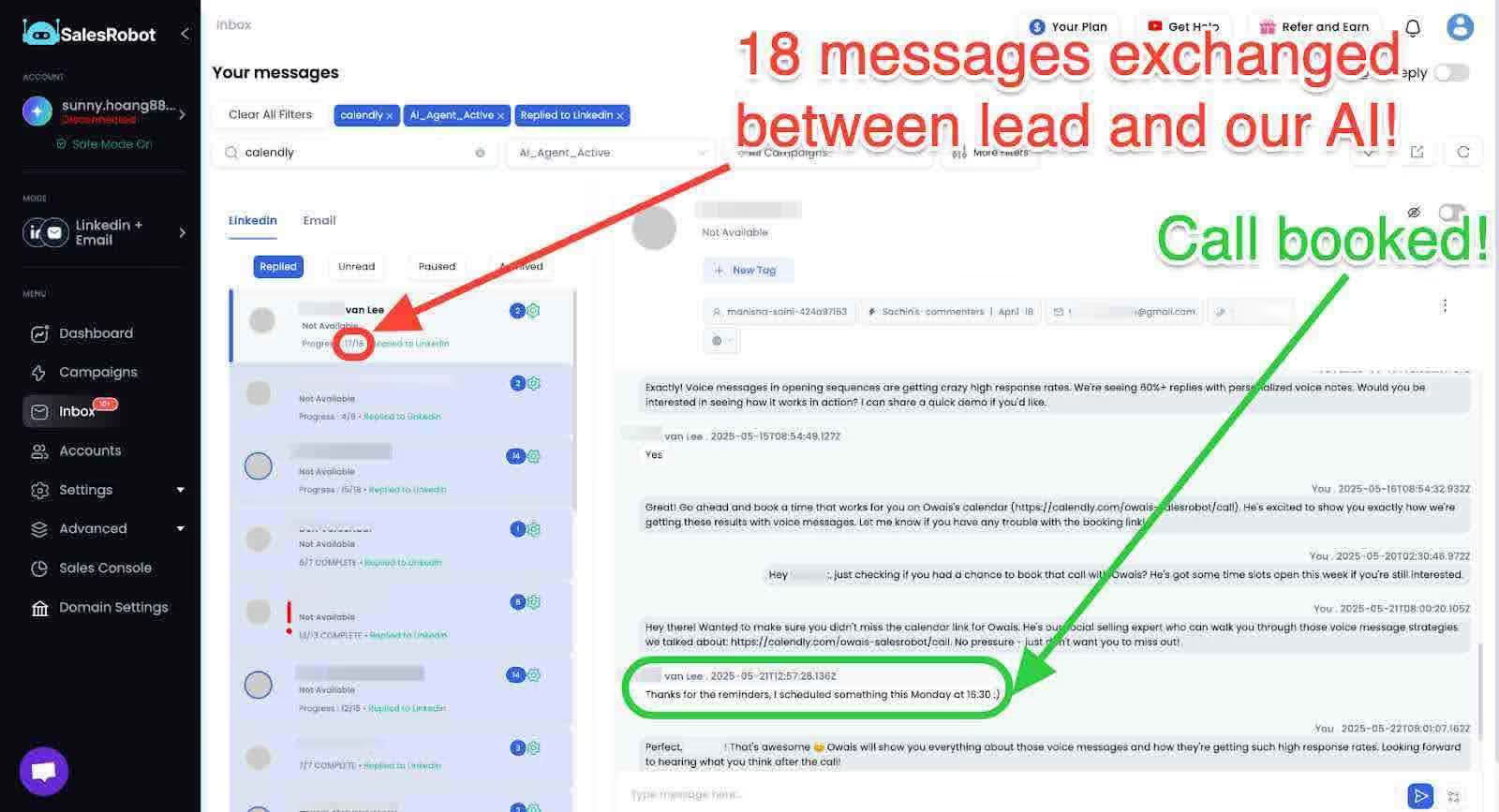
It drafts smart responses in your tone using the CoPilot mode, where you can even review the messages and tweak them to your liking.
Moreover, it can even keep the chat alive automatically with its Autopilot mode until they're ready to hop on a call.
LinkedIn Link Preview Issues and Solutions
Sometimes, when sharing content with GIFs, you might encounter LinkedIn link preview issues.
If your LinkedIn link preview is not working or showing outdated information, try clearing LinkedIn's cache by updating your page's meta tags or using LinkedIn's Post Inspector tool to refresh the preview data.
This ensures your GIF-enhanced content displays properly when shared across the platform.
Conclusion
If you're still here, thanks for sticking around!
GIFs on LinkedIn haven't been around long enough, but they've indeed left their impact!
It's like the cherry on top of your message or content, boosting engagement like nothing else can.
And we've talked about them quite a lot today, so here's a quick summary:
✴️First up, we discovered why GIFs should be considered,
✴️Next, we talked about different ways you can post a GIF on LinkedIn,
✴️I also told you how I grew my network using GIFs,
✴️I've also discussed common problems related to GIFs on LinkedIn and their workarounds,
✴️And lastly, some benefits of using GIFs on LinkedIn.
If you found this helpful, then you cannot miss out on Outly to ease your work.
Because if you start messaging and following up with each prospect individually, you're gonna drain yourself mentally and physically.
And on top of that, you have to do constant LinkedIn posting and commenting to get more attention.
Outly will literally save you from an enormous amount of grunt work by completely automating your LinkedIn outreach.
It can also help you comment on each post within seconds in your preferred tone!
It's insane, trust me!
Try it out for free for 14 days and see for yourself! We don't need your credit card or phone number, so no worries!
That's all from my end,
Thank you!
Frequently Asked Questions
- Can you use GIFs on LinkedIn posts and comments?
Yes! You can upload GIFs just like images in posts, comments, and even DMs.
- Are there technical limitations I should know about?
Yes, actually. LinkedIn caps GIF sizes at 5MB - go beyond that and you'll be staring at error messages instead of seeing your awesome animation.
For optimal visual appeal:
- Post dimensions: 1080×1080 (square) or 1920×1080 (landscape/portrait)
- Article header : 1200×644
- Article inline images : 600×322
- Can GIFs improve LinkedIn engagement?
Absolutely. They grab attention, get emotions across in a less boring way, and make your content more fun to engage with.
- Where exactly can I use GIFs on LinkedIn?
LinkedIn allows GIFs in posts, articles, comments, and direct messages. However, GIFs cannot be used as profile pictures or cover images for personal or business profiles.
- Do GIFs work differently in LinkedIn articles versus posts?
Yes. When you insert a GIF as a header in an article, it will animate both in the article itself and in any previews across LinkedIn. However, GIFs embedded within articles using links will only animate within the article.
- Can I upload my own custom GIFs, or am I stuck with LinkedIn's library?
Good news! LinkedIn supports uploading your own custom GIFs from your device. So if you've created something brand-specific or just perfect for your message, you can definitely use it (just remember the 5MB limit).
- Why is my LinkedIn link preview not working when I share GIF content?
If your LinkedIn link preview is not working or showing outdated information, try clearing LinkedIn's cache by updating your page's meta tags or using LinkedIn's Post Inspector tool to refresh the preview data. This ensures your GIF-enhanced content displays properly when shared.
Wow your leads by cloning yourself and sending personalized videos and voice notes to each lead on LinkedIn.
If you don't reply to leads within 5 mins, your chances of converting them fall by 50%. Our AI replies on your behalf instantly! (and yes, you can train it)
Don't shoot in the dark. Get detailed analytics on what's working
Outly allows you to invite other team members, so that they can add their LinkedIn Account, run outreach campaigns and get amazing results just like you.