Formatting LinkedIn Posts: 5 Tips That Get More Reach
TL;DR:
Proper LinkedIn post formatting can dramatically boost engagement - use bold text, bullet points, short paragraphs, and visual elements like carousels , which average around 6.60% engagement in recent LinkedIn benchmarks. Focus on mobile-friendly formatting and hook readers in the first 2 lines to stop the scroll.
This article is for you…
If you post on LinkedIn but don't get much love - no likes , no real comments - there are a few common reasons. But for most people, the fix is super simple .
Your LinkedIn posts might not be formatted correctly .
Let's be honest - LinkedIn is flooded with essay-length posts. And seriously, who has the time (or patience) to wade through all that?
In a world where reels and TikToks have taught us to capture attention in seconds, your content must be snappy, easy to read, and packed with value. Research shows that mobile-first users have 10% lower sustained attention than desktop-first users, making proper formatting even more CRITICAL.
The right formatting can make all the difference - helping you grab eyeballs and turn casual scrollers into actual leads. 🚀
That's why it's all about making your content easy to read, digestible, and valuable. The better your formatting, the more likely you will grab attention and turn readers into leads.
Here's what I mean by formatting:
✅ Highlight key points to stand out
✅ Emphasize certain words to make them pop
✅ Make important details super clear
✅ CAPITALIZE when you need to make an impact
✅ Use videos, images, carousels, or polls to switch it up
✅Be sure to use an appropriate number of emojis to capture attention
I know LinkedIn doesn't let you format directly like that, but there are workarounds !
You can use tools or change up your content style to stand out.
Stick around, and I'll share everything you need to know to turn your content into a magnet for new customers. Keep going!
We will deep dive into:
- Why LinkedIn Posts should be well-formatted
- Dos and Don'ts for Formatting your LinkedIn Posts
- How To Format LinkedIn Posts?
- Best tools you can use to format LinkedIn Posts
- Best types of LinkedIn Post formats
Let's talk about why it's so necessary to format your LinkedIn Posts well:
Why Format Your LinkedIn Posts?
Because… let's be real.
People scroll, skim, and pause for a second, maybe drop a comment, and then boom, scroll on.
LinkedIn isn't what it used to be . It's evolving fast, and these days, it feels like everyone is either trying to be a thought leader or turning their posts into a lead magnet.
To stand out, your content needs to be easy to read, visually appealing, and built for engagement.
This is nothing but FOMO .
A lot of people who are crushing it on LinkedIn have been posting for years . They all started with those long essay-style posts.
But as attention spans keep shrinking , they had to switch things up and format their posts better.
Because with good formatting, you can make even a simple idea POP.
Here's why that matters:
1. Increases engagement 🧲
As David Ogilvy says, "On the average, five times as many people read the headline as read the body copy. When you have written your headline, you have spent eighty cents out of your dollar."
And the first line of your content needs to grab attention RIGHT AWAY.
To do this, a bold, curiosity-driven headline is everything.
Ex: How I {impressive achievement} on {unlikely platform/channel} in {time period}
2. Improves readability 👀
No one wants to read a wall of text.
If you're cramming all your thoughts into huge paragraphs, people are going to skip right over them .
Attention spans are not what they used to be, but this isn't exactly a bad thing!
It just means you need to come up with catchy headlines and make sure you break up large blocks of text with short paragraphs and bullet points (like we did for this article that you're reading)
3. Helps key points stand out 🔊
Since most people skim through content, highlighting the right keywords is key to grabbing their attention. If you don't, they might miss your entire point.
There are multiple ways to do this (and we're about to cover them in the next section).
Warning!
But be careful, using too much bold or italics can clutter your post.
And always, always check how it looks on both mobile and desktop. Don't let formatting be the reason your message falls flat!
Do's and Don'ts for Formatting Your LinkedIn Posts
| ✔️ DO | ❌ DON'T |
|---|---|
| Use Bold, Italics, & Bullet Points - Highlight key points to make them stand out. A wall of text is a scroll-killer! | Write Giant Walls of Text - If your post looks intimidating to read, people will scroll past it. |
| Break Up Large Paragraphs - Keep sentences short and snappy. Nobody likes reading huge text blocks. | Overuse Bold & Italics - Too much formatting can clutter your post instead of making it clearer. |
| Add Visual Elements - Use images, carousels, videos, and polls to make your posts more dynamic and engaging. | Forget a CTA (Call to Action) - Tell your audience what to do next - comment, like, share, or check out your link. |
| Use Emojis (Wisely!) - A few well-placed emojis add personality and draw attention. Just don't overdo it. | Post Without Proofreading - Typos and poor formatting can kill your credibility. Always double-check before hitting publish. |
| Hook Readers Immediately - Your first line should be compelling enough to make people stop scrolling. | Ignore Mobile Users - Most people read LinkedIn on their phones. Make sure your formatting looks good on small screens. |
Have I managed to capture your attention and make you feel like this post is worth it? If yes, keep reading coz I will be discussing these points in detail 😄
How To Format LinkedIn Posts? (5 Rich Formatting Options)
1️⃣ Bold
When should you use bold text?
When you want certain keywords or phrases to stand out and grab your reader's attention. It helps them quickly scan your content and instantly grasp the value you're sharing.

2️⃣Italics
When should you italicize text?
Italics are ideal for adding a subtle emphasis - perfect for quotes, internal thoughts, or specific names. They give a softer highlight compared to bold text, drawing attention without being too overpowering.
Tips:
Use italics for dialogue or to emphasize what someone might be thinking. This will add depth to your content without overwhelming your readers.
3️⃣ Underline
When should you underline text?
Using underlined text isn't common on LinkedIn and can often be mistaken for hyperlinks. It's best reserved for specific, important points that need extra emphasis.
(It is so rare that I don't have an example to show!)
4️⃣ ▪️ Bullet points
When should you use Bullet Points?
Bullet points, aka Listicles, are perfect for organizing information.
They help break down complex ideas into easy-to-digest lists, making your content more scannable.
They also give readers a visual break , making your post less overwhelming.

Tip:
Use bullet points to list critical steps only.
5️⃣ CAPITAL LETTERS
Why should you use capital letters?
Using all caps can come across as shouting and make your post feel aggressive . Instead , I recommend using capital letters for acronyms or specific terms , rather than for whole sentences.
This helps you maintain a professional tone.

Use capital letters for acronyms like “SEO” or “CR.”
Don't use capitals to write an entire sentence or post because it's the text equivalent of shouting at someone you don't like… keep that for arguments with friends!
As I mentioned at the beginning of this article, LinkedIn doesn't offer a native feature for this. Instead, you can use a tool (I've discussed this in the next section).
6️⃣ USE APPROPRIATE EMOJIS
Emojis help you get noticed, interest people, and remember what you shared. Remember to use emojis, maintaining a balance between playfulness and professionalism.

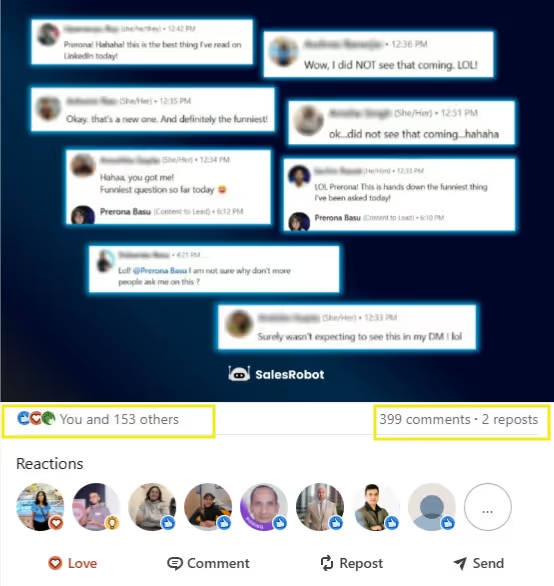
Appropriate use of emojis and a clever carousel of replies made this post go VIRAL on LinkedIn and triggered a response from the readers. Just look at the number of comments- that too in three days! 👏
Which Tool Should I Use To Format LinkedIn Posts?
Here's the deal: it's not just what you say but how you say it. No matter how brilliant your insights are, if your post looks like a giant wall of text, people will scroll right past it.
So, let's talk about 4 tools (2 free and 2 paid) that let you format your LinkedIn posts.
1. LinkedIn Makeover
LinkedIn Makeover offers a free LinkedIn Text Formatter tool to help you format your content.
However, the formatted text may not display universally on every device.

Top feature:
- Type your text into the formatter, copy the output, and paste it into your LinkedIn post.
- Perfect for headings and snippets.
- Lifetime free.
2. Buffer
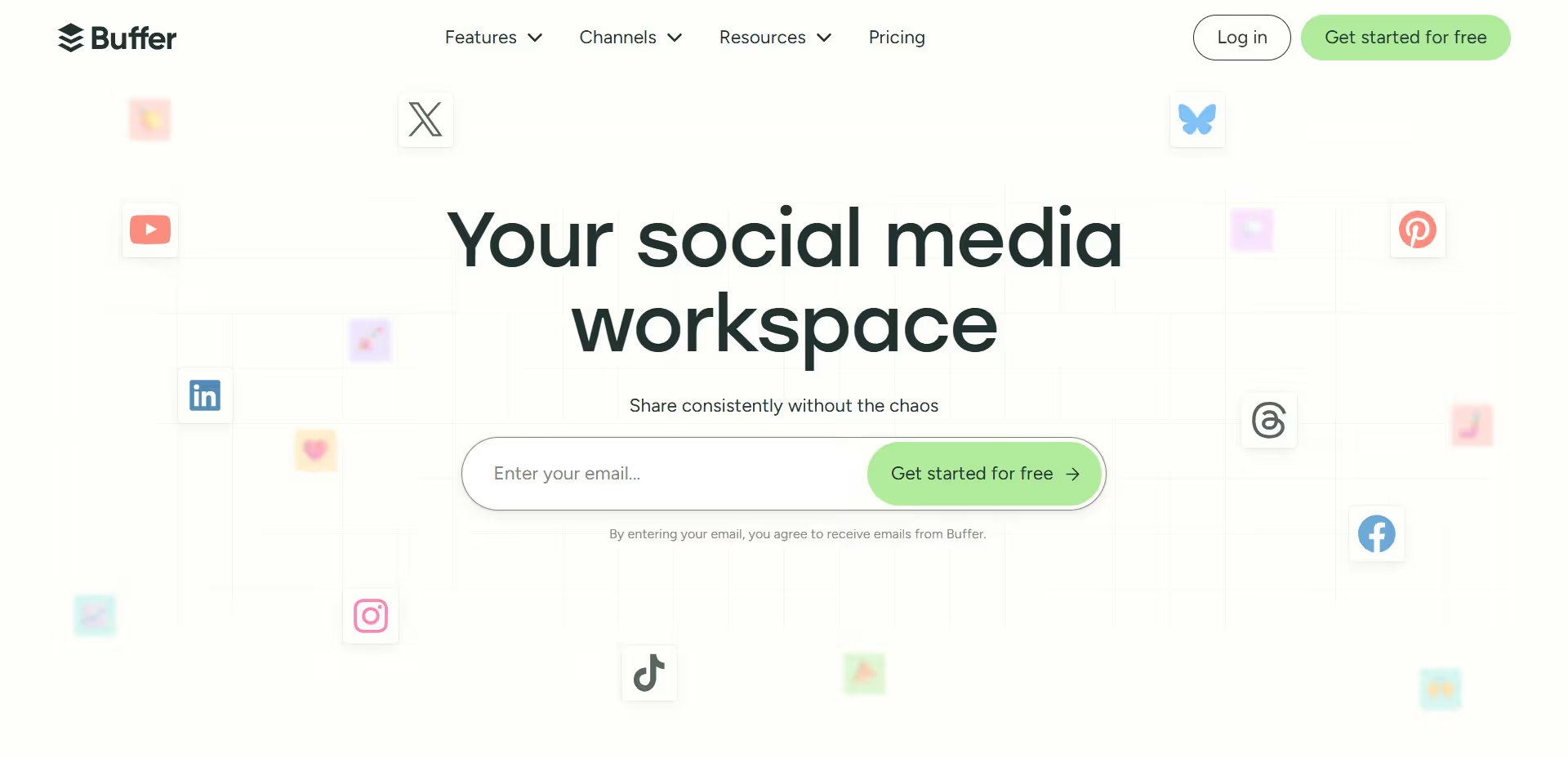
Buffer is a social media management tool designed to help you grow your audience. It lets you manage all your favorite social media channels from a single platform.
Top features:
- Schedule posts on multiple platforms, including LinkedIn.
- Use advanced formatting options to enhance your content.
- Track post performance with analytics.
Free plan available; paid plans start at $6/month.
3. AuthoredUp
AuthoredUp is a Chrome extension built for LinkedIn. The tool allows you to create well-formatted LinkedIn content and provides a comprehensive LinkedIn text formatter. ( It's one of the top 3 tools for me)
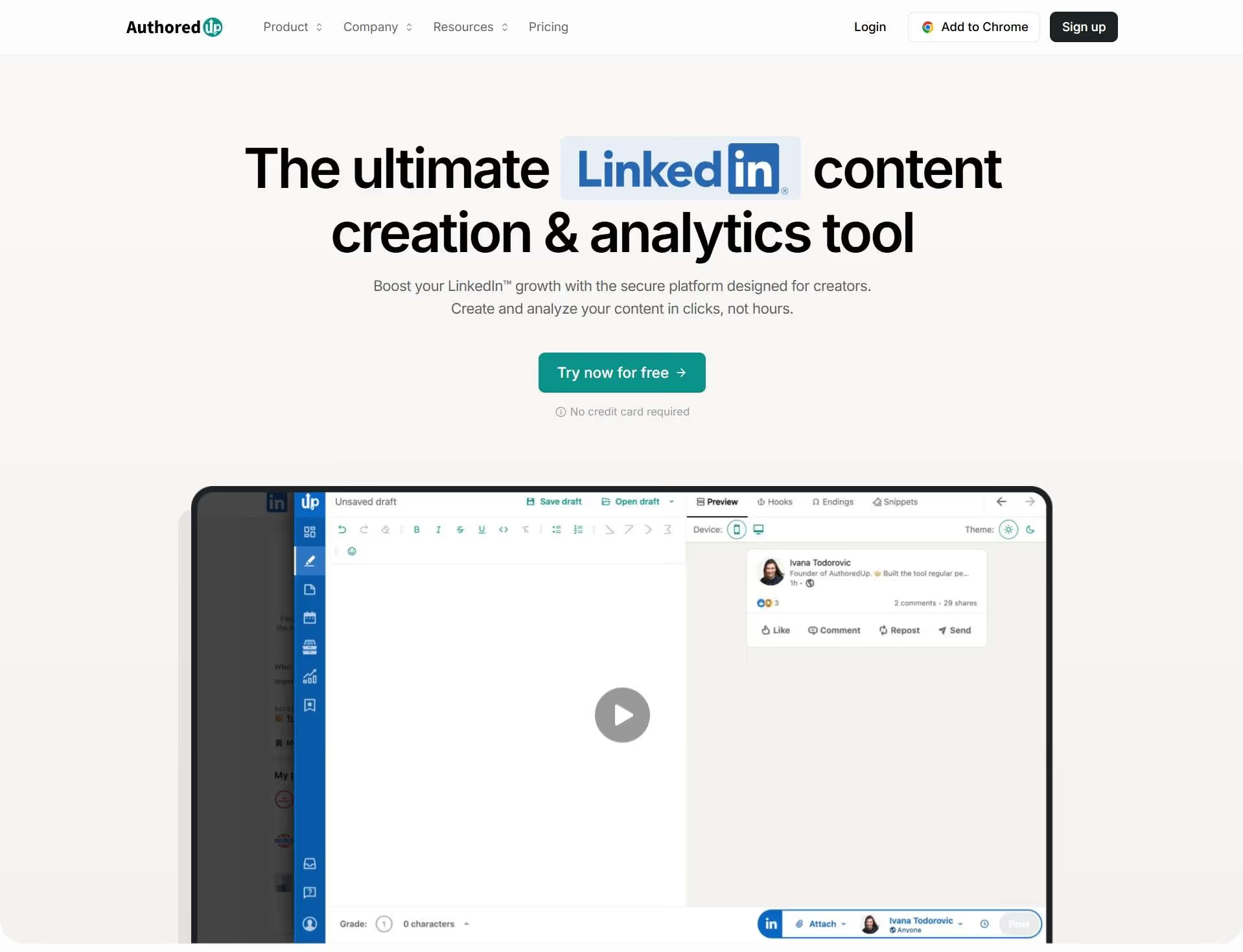
- User-friendly editor with rich text formatting.
- Content calendar to plan your posts.
- Collaboration tools for team efforts.
Paid plans start at $19.95/month.
4. Taplio
Taplio is an AI content creation and scheduling tool. It comes as a Chrome extension as well as a cloud tool. It helps you create, format, and optimize your LinkedIn content.
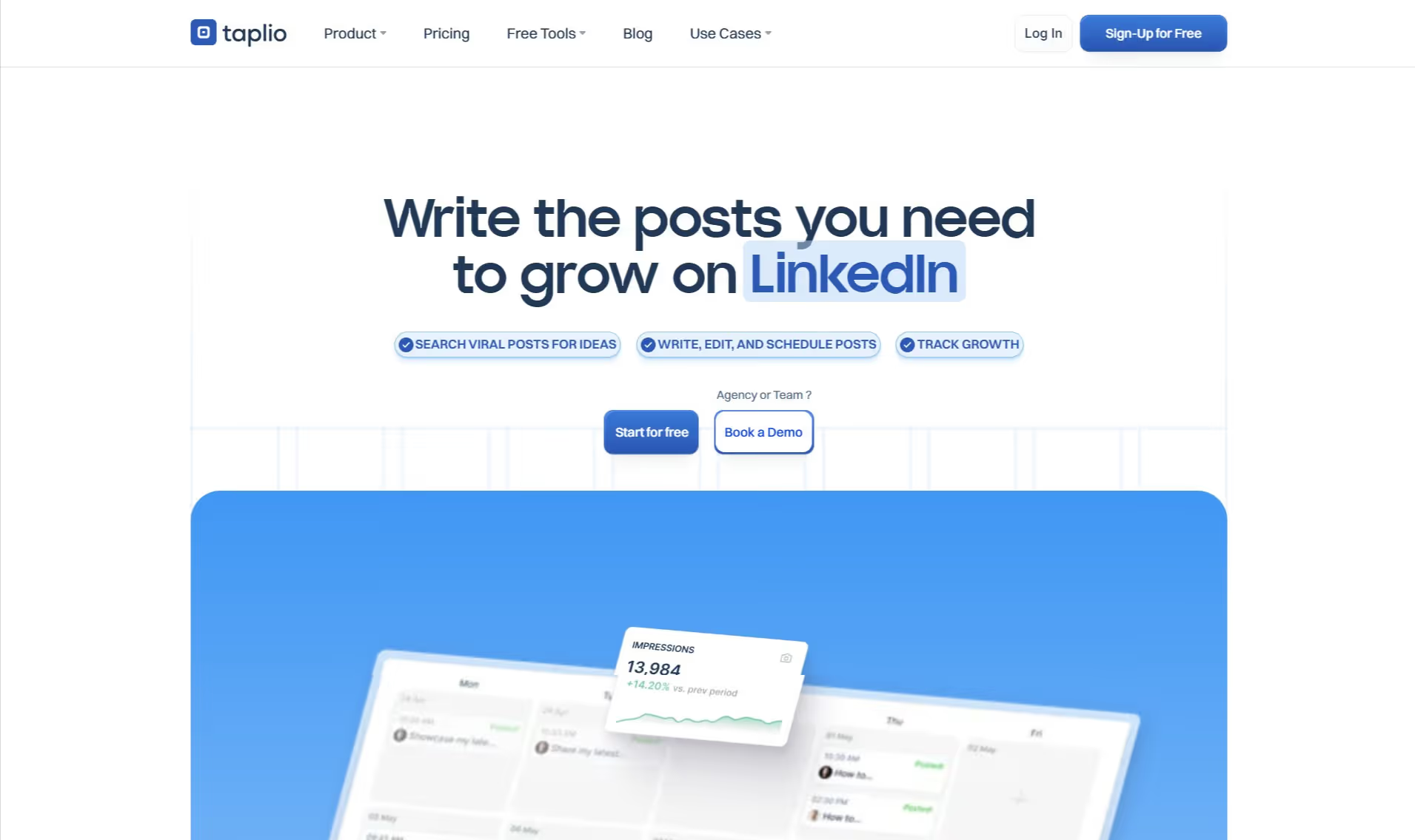
- AI-driven content suggestions for LinkedIn.
- Formatting tools to enhance your posts' visuals.
- Daily inspiration for fresh LinkedIn content.
Paid plans start at $39/month.
Now that we've covered the formatting and tools, it's time to dig a little deeper into the content, too.
5 Types Of LinkedIn Post Formats That Work Best
Here's a fact about LinkedIn:
The platform loves to change its algorithm every 2-3 months, which can seriously affect your content engagement. However, some LinkedIn post formats are evergreen, consistently bringing in impressions and engagement no matter what!
1️⃣ Video
LinkedIn is NOW prioritizing video content in users' feeds. Similar to the way how Instagram or Tiktok works.
LinkedIn vidoes get around 1.4x more engagement than other formats according to LinkedIn's internal data, and many LinkedIn influencers are shifting their focus to this format because it's clearly the future of engagement!
Best Use Case?
Explainer videos are great for breaking down complex ideas into easy-to-understand concepts.
Customer testimonials. Behind-the-scenes content also does well.
Best Practices:
- Include a strong Call to Action (CTA): Clearly tell viewers what to do next, like visiting your website or sending you a DM.
- Keep it concise: Aim for videos under 60 seconds unless the content needs more time. Also, record in portrait mode.
2️⃣ Giveaway
Giveaways, or "lead magnets," are a great way to boost engagement by offering a free, valuable resource in exchange for actions like likes, comments, or shares.
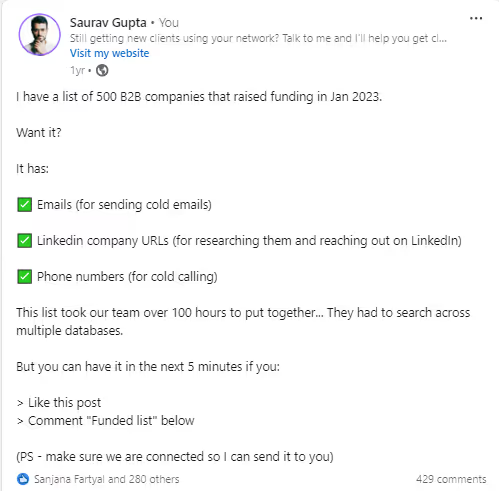
Easy-to-consume lead magnets include templates, on-demand videos, live tutorials, toolkits, infographics, cheat sheets, and more.
They pack instant value.
- Clearly outline the rules: Make participation easy to understand.
- Use eye-catching visuals: Grab attention with images or GIFs related to the giveaway.
3️⃣ Carousels
Carousels allow you to upload multiple images or slides that viewers can swipe through, making them great for detailed storytelling.
Multi-image carousels now have the highest average engagement rate of 6.60%, surpassing all other content forms on LinkedIn.
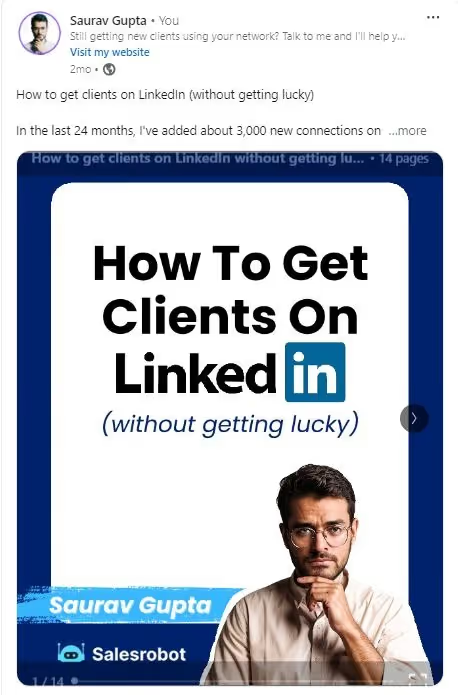
Step-by-step guides, listicles, and storytelling.
Anything that lets you present detailed information in a clear and engaging way works well.
- Use high-quality visuals: Ensure your slides are visually appealing and consistent.
- One carousel, one complex topic: Break down one complex topic in one carousel and ensure each slide flows logically to the next.
4️⃣ Single image
Single-image posts are great for making a bold visual impact, no matter the text length.
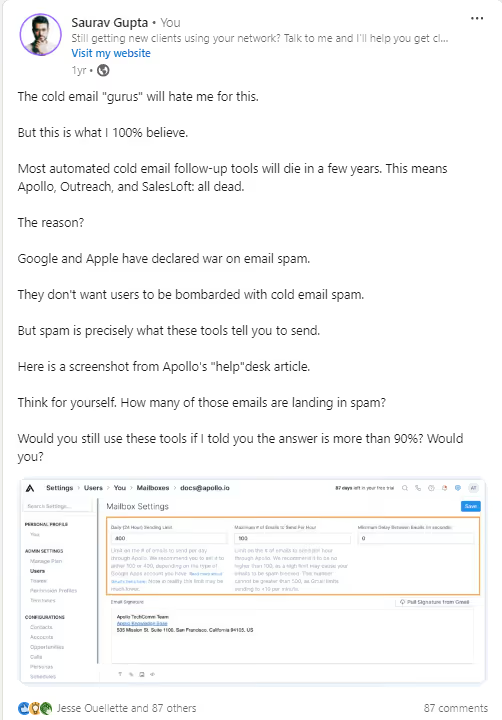
Sharing statistics, infographics, event promotions, or memes. Great for virality.
- Use the image in the context of the text: Don't use a non-context selfie with your post.
- The hook should match the image: Write a hook that teases and makes people think, "Why did they add that image?"
5️⃣ Text only
Text-only posts are all about delivering your message without images or videos. You can use hashtags and emojis to boost engagement. However, be aware that text-only posts typically underperform compared to visual content, especially in 2026.
Ideal for quick updates, asking questions, or sparking conversations.
- Use headers and bullet points: Break up text to make it scannable.
- Incorporate emojis: Add visual interest and emphasize key points.
What Are LinkedIn Post Formatting Best Practices for 2026?
In 2026, LinkedIn isn't playing around anymore.
The platform has gotten pickier about what gets seen, and your formatting can make or break your post's performance. Format matters more than ever, according to the latest LinkedIn benchmarks.
The 2026 LinkedIn Formatting Checklist:
✅ Hook readers in the first 2 lines (you've got 3 seconds max)
✅ Use white space like it's your best friend
✅ Keep paragraphs to 2-3 sentences (mobile users will thank you)
✅ Mix up your content types - carousels are getting much more engagement
✅ Bold your key points (but don't go overboard)
✅ Test how it looks on mobile first, desktop second
✅ Avoid posting at low-activity times or using outdated text-only formats
✅ Keep hashtags to 4 or fewer (5+ can hurt performance)
How to Tag Someone in LinkedIn Posts for Better Engagement
Tagging people in your LinkedIn posts is a powerful way to increase engagement and expand your reach. When you tag someone, they get notified and are more likely to engage with your content.
Here's how to tag someone on LinkedIn:
- Type @ followed by the person's name while writing your post
- Select the correct person from the dropdown menu that appears
- Make sure the tag is relevant to your content and adds value
- Don't overdo it - limit tags to 2-3 people per post to avoid looking spammy
Strategic tagging can help your posts reach new audiences and spark meaningful conversations in your network.
Conclusion
Coming up with unique LinkedIn content is not easy, but a little formatting can make a generic post feel unique.
The secret sauce? Formatting.
Use bold, italics, and bullet points to make your key ideas pop. Nobody likes a giant wall of text—break it up, make it skimmable, and keep readers hooked.
Mix things up with videos, carousels, and even giveaways to keep your audience engaged and coming back for more. Remember, carousels are dominating with 6.60% engagement rates while videos generate 1.4x more engagement than other formats.
Need a shortcut? Tools like LinkedIn Makeover and Buffer can help you polish your posts and speed up the process.
Here's the game plan:
✅ Experiment with different formats to see what clicks.
✅ Track your performance and tweak your strategy.
✅ Stay ahead of the curve by keeping up with LinkedIn's latest trends.
That's the playbook. Customize it for your audience, and watch your engagement skyrocket. 🚀
P.S. Try our tool, Outly , for the next 14 days— we're offering it for free . You can use it to reach out to top LinkedIn creators and ask about their content strategies.
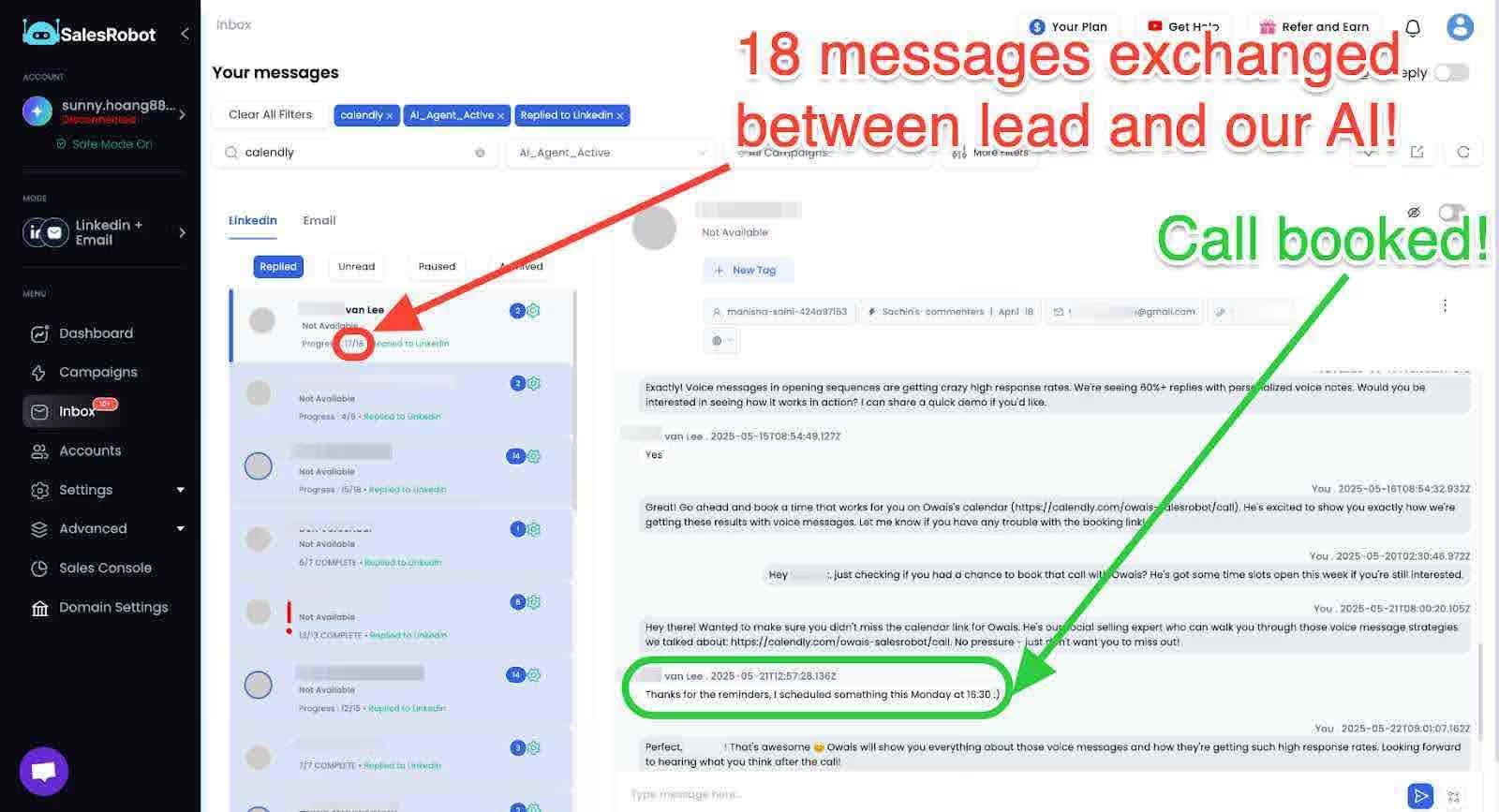
And when they start engaging, our AI Appointment Setter takes over the conversation, nurturing them toward meetings while you focus on creating killer content.
It can auto-respond, qualify leads, and move conversations toward booked meetings for you.
It's a win-win for both of us.
Frequently Asked Questions
Why are my LinkedIn link previews not working?
LinkedIn link preview issues can occur due to caching problems or incorrect metadata. Try using LinkedIn's Post Inspector tool to debug link preview problems and refresh the cache for your URLs.
What should I do if the LinkedIn Post Inspector isn't working?
If the LinkedIn Post Inspector tool isn't functioning properly, wait a few hours and try again, clear your browser cache, or try accessing it from a different browser. The tool occasionally experiences temporary outages.
Wow your leads by cloning yourself and sending personalized videos and voice notes to each lead on LinkedIn.
If you don't reply to leads within 5 mins, your chances of converting them fall by 50%. Our AI replies on your behalf instantly! (and yes, you can train it)
Don't shoot in the dark. Get detailed analytics on what's working
Outly allows you to invite other team members, so that they can add their LinkedIn Account, run outreach campaigns and get amazing results just like you.