LinkedIn HubSpot Integration in 5 Steps (2026)
TL;DR:
LinkedIn HubSpot integration includes features such as LinkedIn Sales Navigator Integration, CRM sync with Sales Navigator + HubSpot, LinkedIn ads tracking through HubSpot Ads Tool, Post scheduling, and publishing LinkedIn posts (organic) directly from HubSpot's social dashboard, and AI content creation.
However, HubSpot can't send LinkedIn messages directly.
The Problem: HubSpot's LinkedIn integration only allows manual contact imports by syncing through CRM - resulting in mostly cold, unqualified leads unfamiliar with you. This often lead to constant ghosting and rejections.
The Solution: Outly uses LinkedIn Outreach Automation to qualify leads with AI, then exports only sales-ready prospects to HubSpot . Features include AI Appointment Setting, AI Variables, and native HubSpot integration. Pricing starts at $197/month with a 14-day free trial.
Winner: Use Outly for LinkedIn automation → HubSpot for CRM management.
This blog is for you…
If you want a CRM filled with sales-ready leads .
OR
If you feel like managing leads is more work than it should be?
I've been there - juggling spreadsheets , CRMs, and LinkedIn profiles, wondering why it's all so complicated.
And when you consider buying a CRM, it again becomes complicated because there are too many CRMs in the market . Right?
HubSpot is one of the most popular choices out there. Whereas LinkedIn is THE place to meet other professionals in your industry.
Put them together, and you've got a lead-generating machine.
If you're nodding along, good news - you can have that with the LinkedIn HubSpot integration.
Don't worry if you're not sure how it works yet. That's what I'm here for.
I'll walk you through:
- A quick look at what this integration is all about
- The 5 simple steps to set it up
- And a little bonus surprise you'll love
So sit tight because you'll push relevant leads to your HubSpot CRM in no time 😄.
Quick overview of the LinkedIn HubSpot Integration
You know what's cool about LinkedIn HubSpot integration?
From day one, you get these amazing tools that make cold outreach so much easier.
With HubSpot's Sales Hub Professional, which costs $90/month per seat or Enterprise plan, which costs $150/month per seat , here's what you'll get…
- Enrich contact data on HubSpot:
You can configure the LinkedIn CRM sync that connects Sales Navigator with HubSpot.
This feature automatically updates contact data for connections and company page updates.
Every new connection, every company update, everything stays fresh without you having to think about it.
Important note: As of 2026, you'll need a LinkedIn Sales Navigator Advanced Plus plan to maintain this sync functionality. The basic Advanced plan no longer supports HubSpot integration.
- Upload and publish LinkedIn posts:
You can schedule all your LinkedIn posts in one go through HubSpot.
And get this - you can easily repurpose these posts for other platforms too.
Why work hard when you work smart?

- Track post frequency:
The integrated social calendar shows you exactly how often you're posting and when.
This makes it ridiculously easy to keep your content strategy on point and engagement levels high.
It's a total boss move.

- LinkedIn Ads HubSpot integration:
If you run LinkedIn ads, you'll love this.
You can use the LinkedIn HubSpot integration to create ad campaigns and track their performance from a single place.
One place, total control.

- AI Content Powerhouse:
Breeze Social Media AI Agent is a social media expert.
It analyzes your performance, understands your company's vibe, and creates engaging content for LinkedIn, Facebook, X, and Instagram.
It factors in your industry and audience to make sure everything hits just right.

What Are the Benefits of LinkedIn HubSpot Integration?
Your sales team gets LinkedIn insights directly in HubSpot. No more switching between tabs during calls.
Your marketing team can finally track which LinkedIn ads actually convert to customers.
And everyone stops manually copying prospect info between platforms.
Now, if this got you excited, let's see….
How to set up your LinkedIn HubSpot integration in 5 Steps
If you have subscribed to either Sales Hub Professional or Enterprise Seat.
Note:
To send LinkedIn leads to your HubSpot contact lists, you'll need a LinkedIn Sale s Navigator Advanced Plus subscription.
Here's how you can set up LinkedIn HubSpot integration. I t will take just 5 steps to configure this integration:
- Log in to your HubSpot account and Select "Data Management".

- Click on "Data Integration".

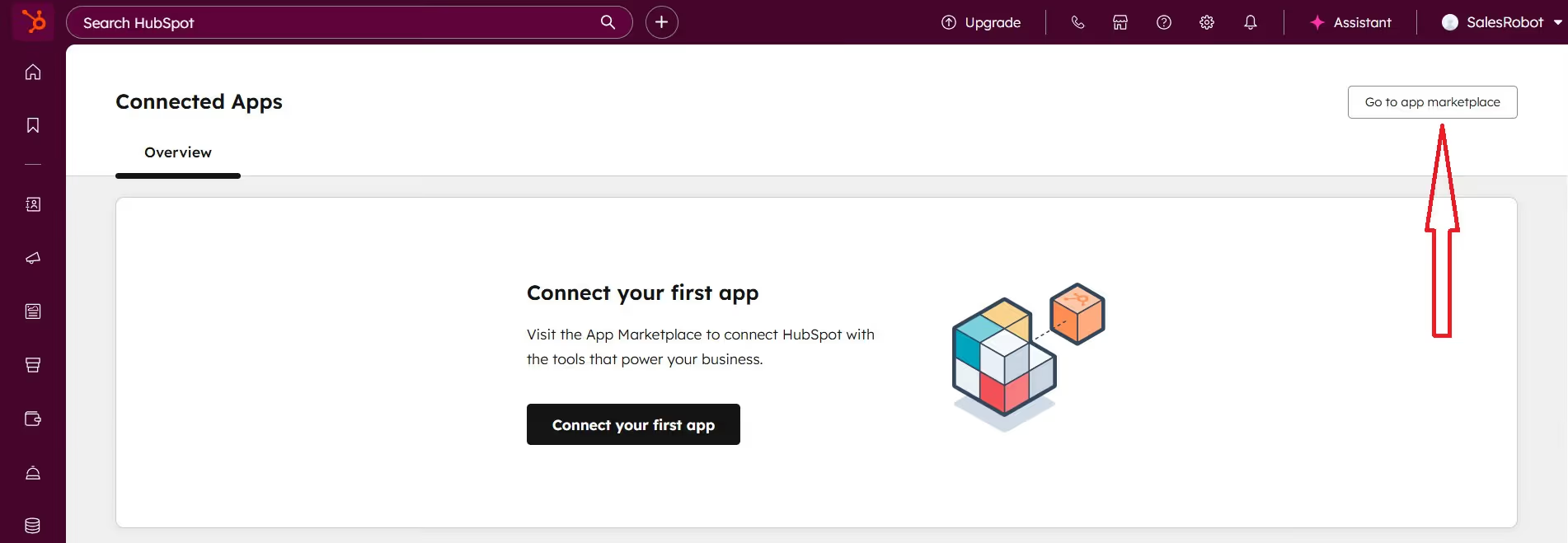
- Click "Visit App Marketplace" to add LinkedIn to your integrations.
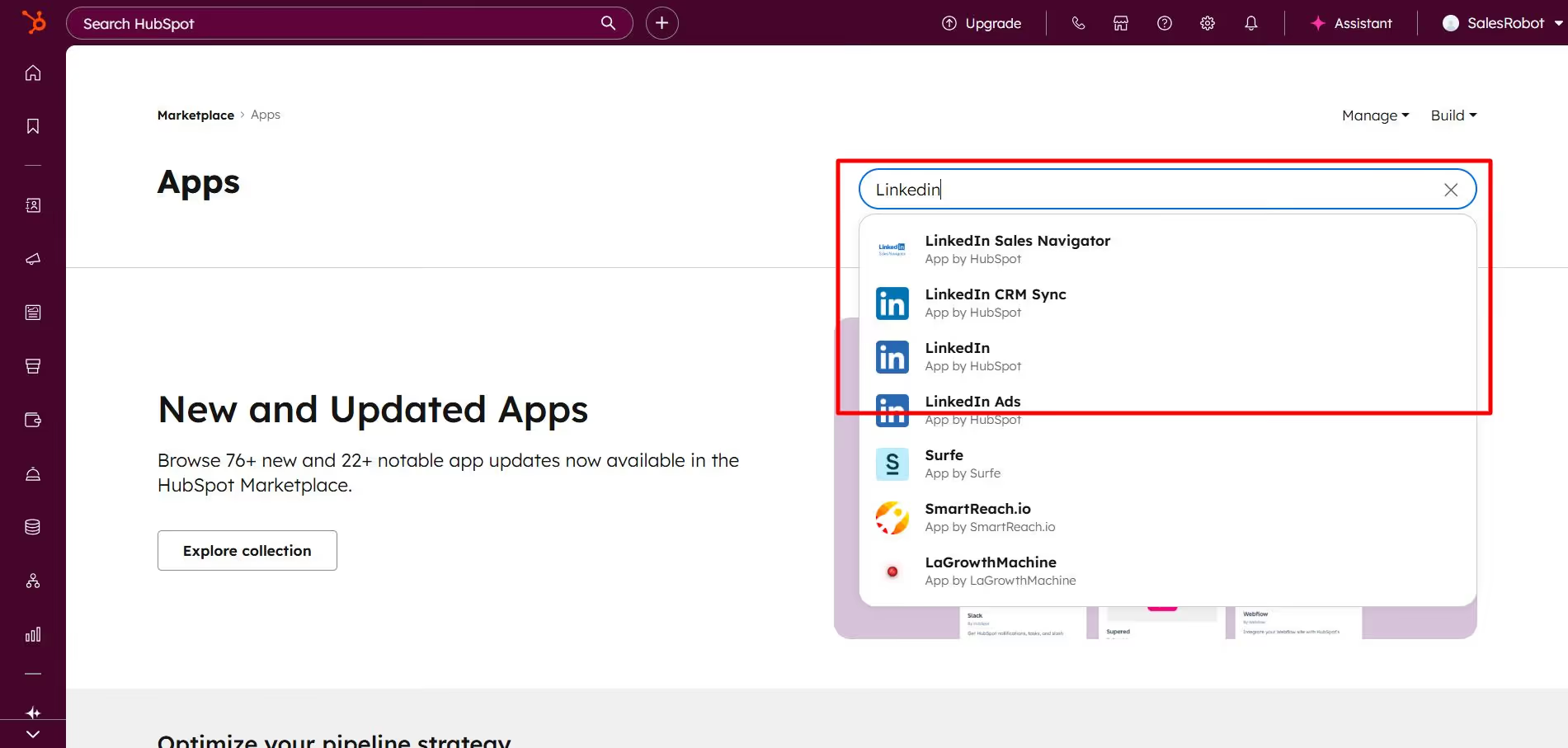
- Search for "LinkedIn CRM Sync" in the search box.
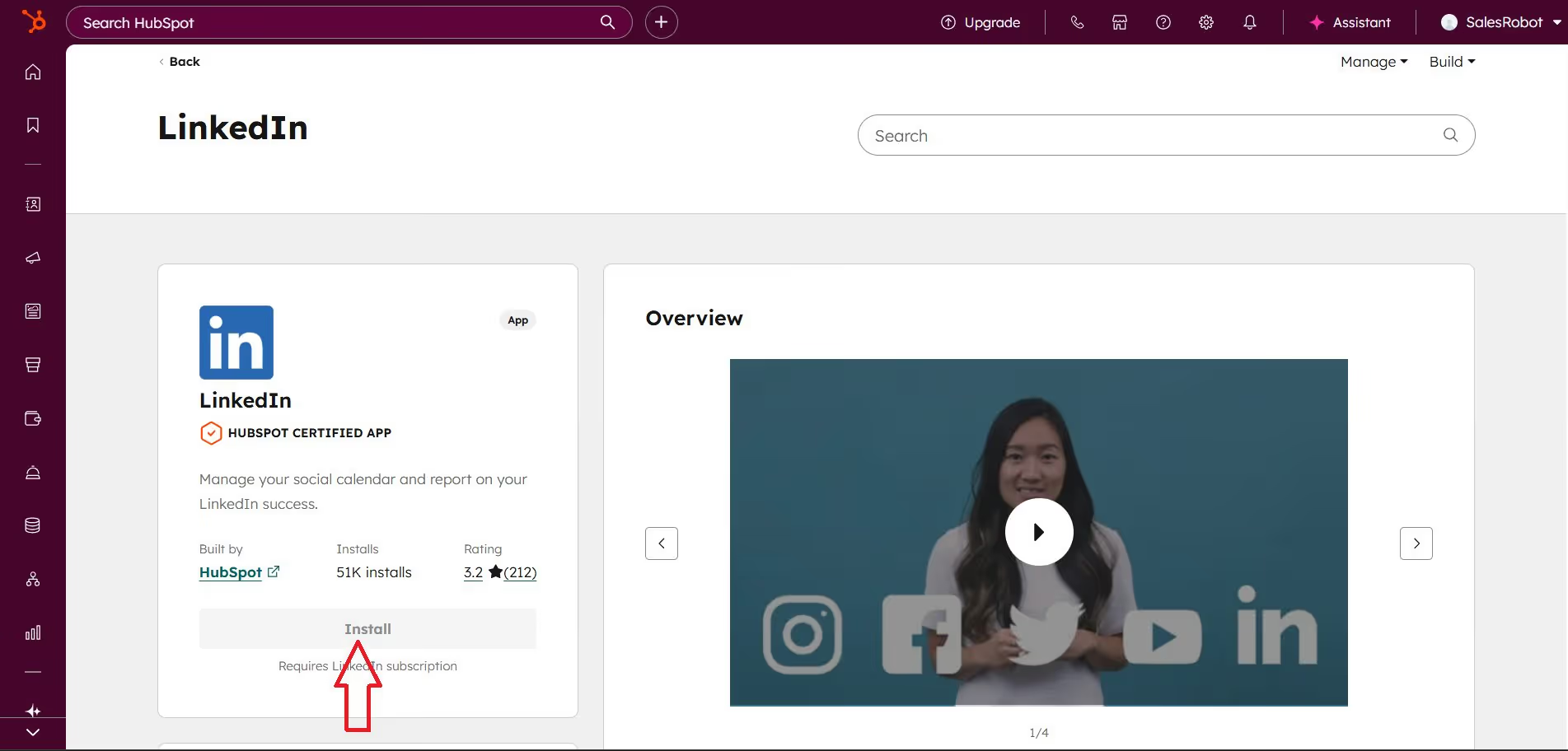
- Click on "Install App" (You can't add LinkedIn as a HubSpot integration in the free plan).
Push only relevant leads with Outly as your LinkedIn CRM
There is something that really frustrated me about HubSpot and LinkedIn - wish someone had told me this earlier.
You know how exciting it feels when you first connect HubSpot and LinkedIn?I was there too - thinking I'd finally streamlined my whole sales process.But here's the painful reality I discovered:
HubSpot can't send direct LinkedIn messages. However, if you have LinkedIn Sales Navigator integrated, you can send InMails from within a HubSpot contact record, though these don't auto-save to the timeline and can't be automate.
Let me explain it…
You import 100 "prospects.
You spend hours personalizing your outreach.
You hit send. And then…
Silence. Or worse - those lovely "Not interested" responses
Or my personal favorite: "Please remove me from your list."
In short, you're in for constant ghosting and rejections if you're trying to find prospects who MIGHT convert into long-term customers.
I went through this for months.
But I turned things around for me. HOW?
I got an automated outreach tool that has a solid integration with LinkedIn that exports qualified leads to HubSpot.
I know, I know - another tool. But hear me out, because this one actually solved my problems instead of creating new ones.
The tool is called Outly .

Outly is a cloud-based LinkedIn and email automation platform that helps you reach out to more leads with messages that actually sound human and not some robot spitting out templated messages (ironic name, I know!).
What's cool about Outly is that it handles all the tedious stuff on LinkedIn.
You can pull prospects from LinkedIn/Sales Navigator search URLs .
Then it scans their profiles to help you personalize your messages , and handles all the follow-ups automatically .
When prospects reply, Outly's AI Inbox manager steps in to handle the conversation until they're ready to book a meeting.

But this is probably what you're most interested in…
Outly has a direct integration with HubSpot!
But unlike that basic LinkedIn-HubSpot integration we were just talking about, it's way smarter about who it adds to your CRM.
Outly lets you harness cold LinkedIn outreach to find and qualify prospects, then exports only sales-ready leads to your HubSpot CRM.
And instead of flooding your HubSpot with random people who'll never respond, Outly waits for the right signal.
Wanna see how easy it is to set up the LinkedIn HubSpot integration on Outly? Take a look!:
-
Log in to your Outly account.
-
Head to "Settings".

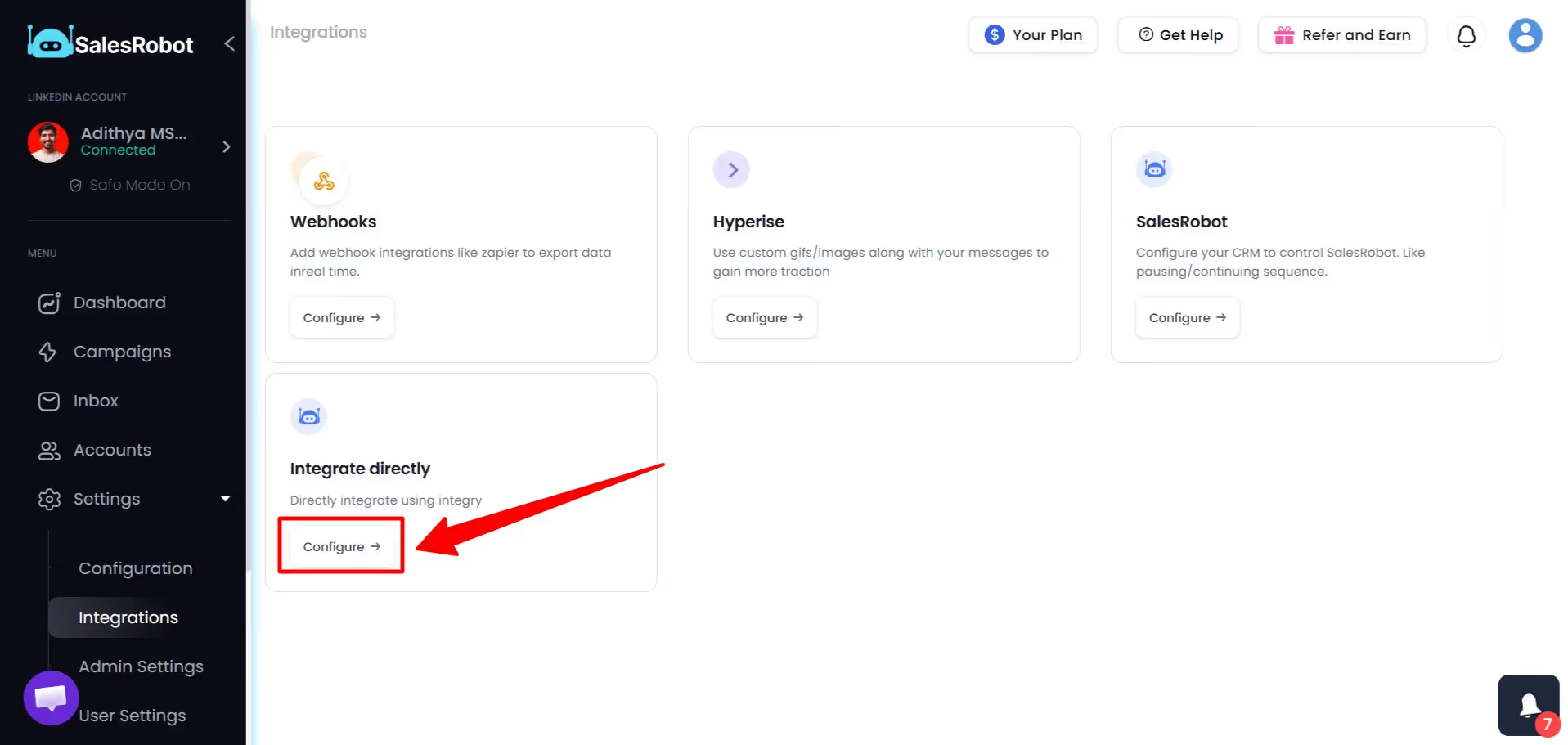
- Click on "Integrations" in the drop-down.
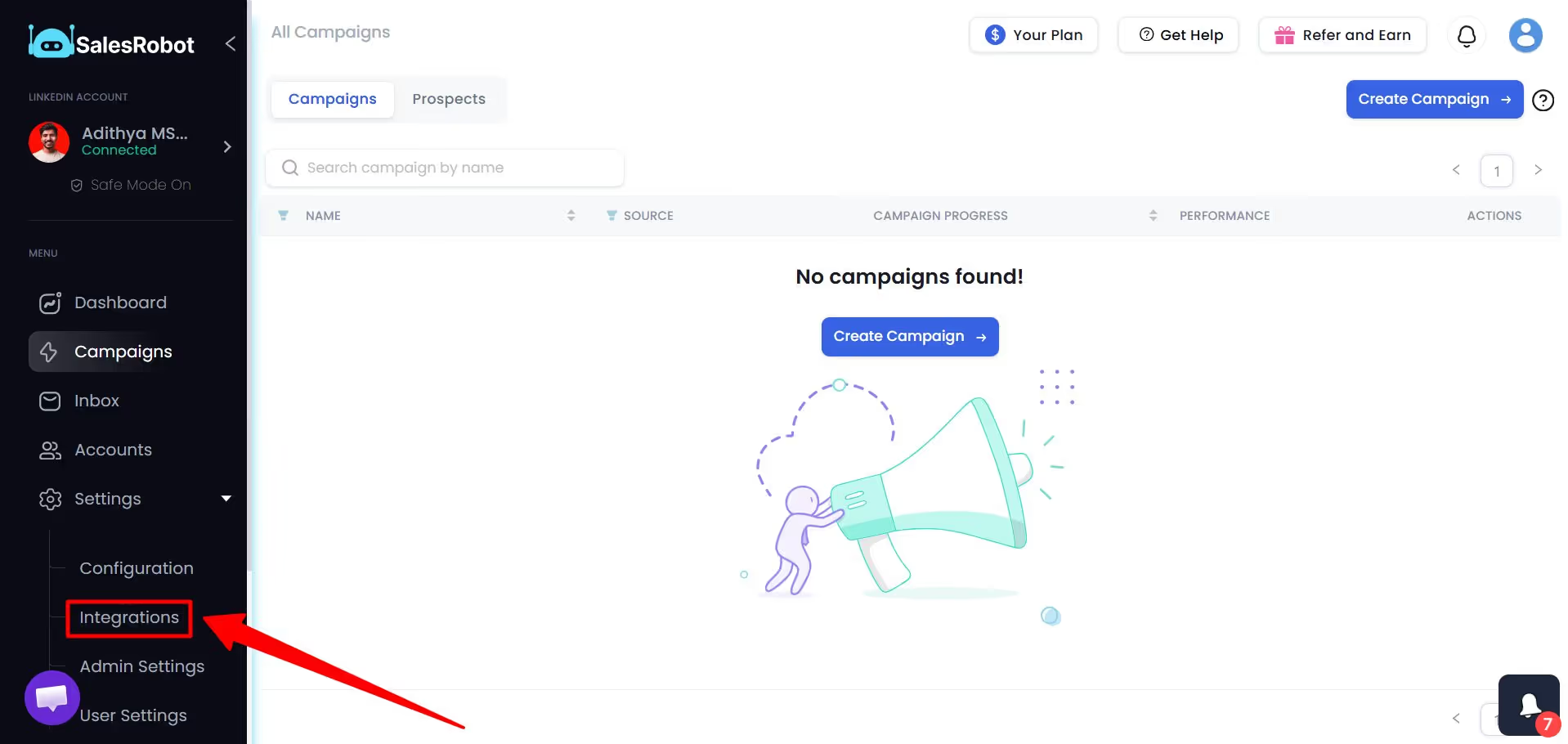
- Look for "Integrate directly" and click Configure
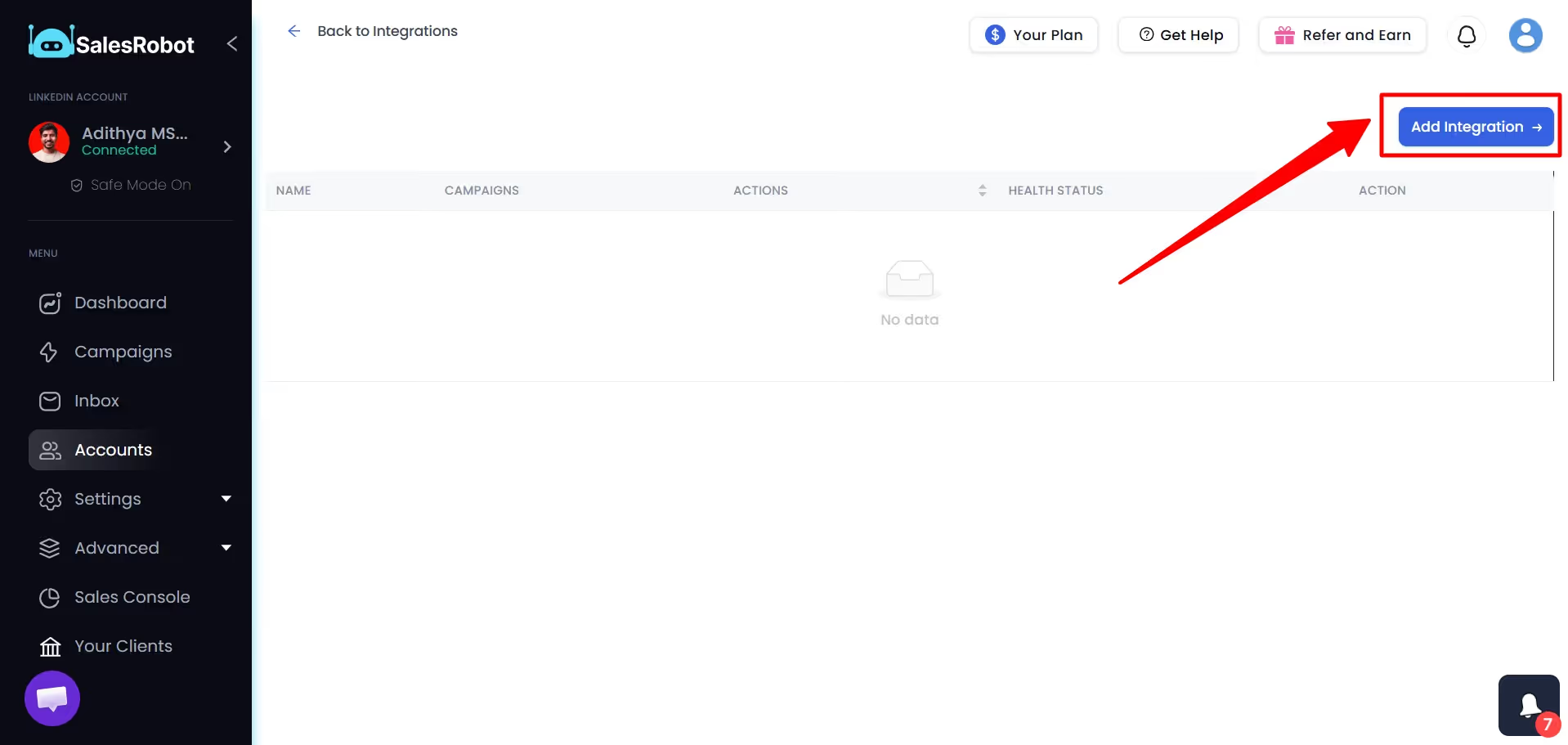
- Click "Add Integration" in the top-right corner
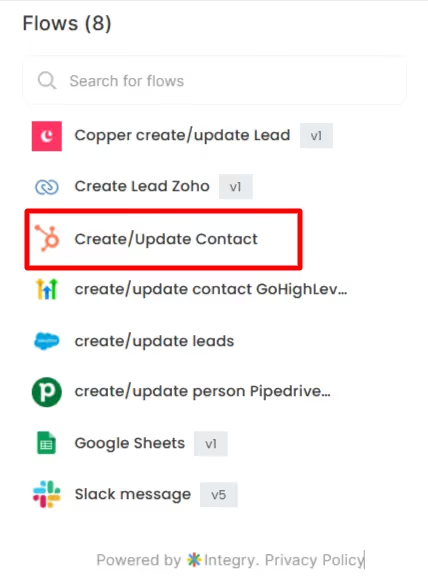
- Click the HubSpot logo and connect your account.
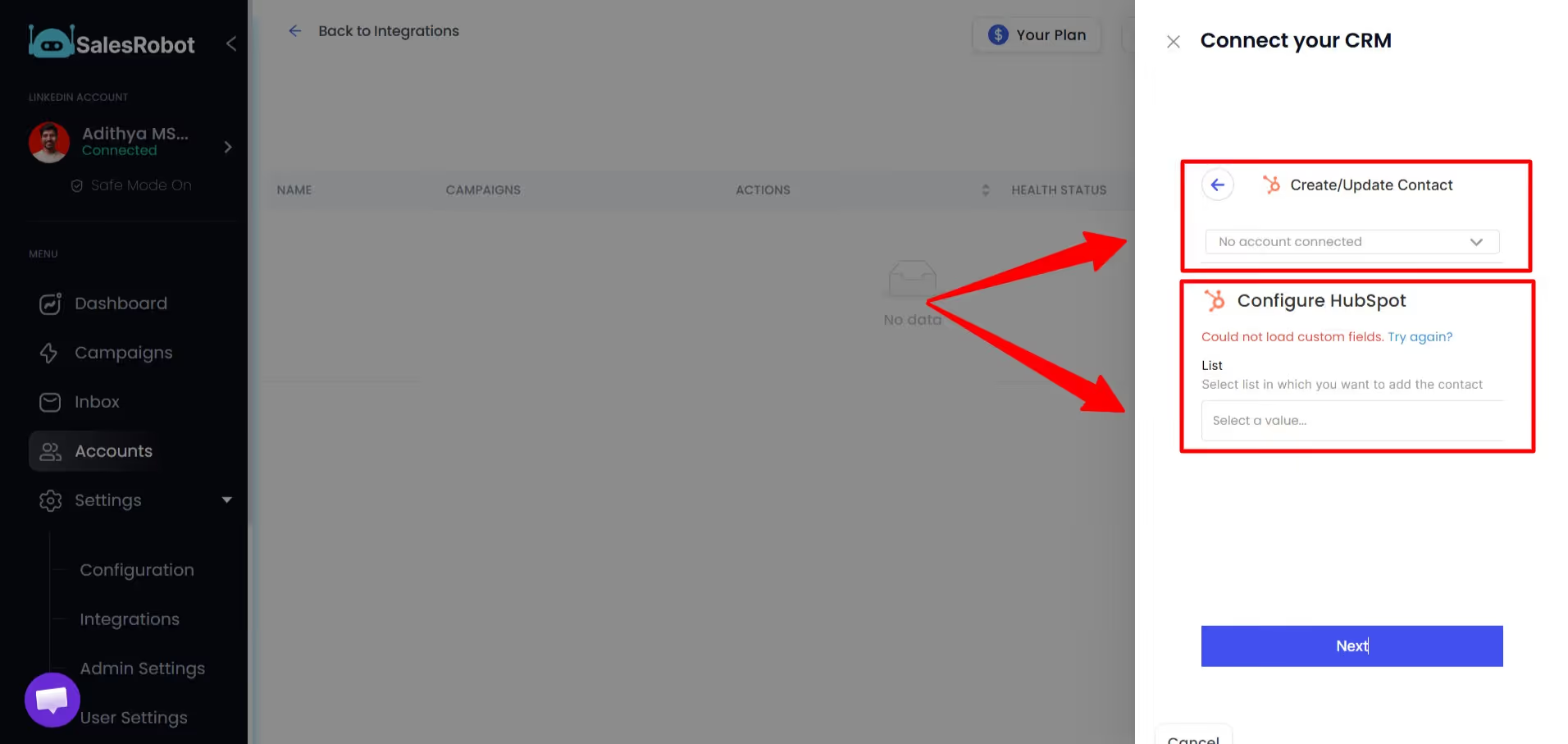
- Use the Connect your CRM panel to set up HubSpot: first, choose how to create/update contacts, then configure the HubSpot list where new leads should be added.
That's literally it!
From here, Outly will start filling your HubSpot contact lists with quality leads.
But truth be told, there's still so much more that you can do with Outly .
If you are curious, you can test Outly 's features to see everything I didn't discuss with a 14-day risk-free trial 😇.
FAQ
LinkedIn link preview issues often occur when the linked page lacks proper Open Graph meta tags, has slow loading times, or the URL is being blocked by LinkedIn's crawler. To fix this, ensure your page has proper meta tags for title, description, and image, then use LinkedIn's Post Inspector tool to refresh the preview.
While GoHighLevel doesn't have a native LinkedIn integration like HubSpot does, you can use third-party tools like Outly to connect LinkedIn with GoHighLevel. This allows you to capture leads from LinkedIn campaigns and sync them to your GoHighLevel CRM automatically.
Until next time,
Good luck!
Wow your leads by cloning yourself and sending personalized videos and voice notes to each lead on LinkedIn.
If you don't reply to leads within 5 mins, your chances of converting them fall by 50%. Our AI replies on your behalf instantly! (and yes, you can train it)
Don't shoot in the dark. Get detailed analytics on what's working
Outly allows you to invite other team members, so that they can add their LinkedIn Account, run outreach campaigns and get amazing results just like you.