How to Withdraw LinkedIn Invitations: Complete 2026 Guide
TL;DR:
You can withdraw LinkedIn invitations anytime without notifying recipients by going to My Network > Show All > Sent tab > Withdraw next to the Invite > Confirm the Withdrawal.
LinkedIn allows up to 700 pending requests, but maintaining too many can hurt your visibility and SSI score, so clean them up every 3 months or so as the risk builds up (or every 2-3 weeks if the pending requests volume is high).
This blog is for you…
If you have sent connection request invitations to random people on LinkedIn.
Or maybe you've reached out to the right people, waited forever, and they haven't accepted your connection request.
Either way, you now need to withdraw the LinkedIn invitation .
Don't worry, it's simpler than you think.
Before I tell you how, you should know that having pending requests actually affects your LinkedIn SSI score , which ultimately impacts your visibility .
It's not a great look to have lots of requests just hanging there, which is why you should do a cleanup drive every 3 months or so, as the risk builds up (or every 2-3 weeks). LinkedIn allows up to 700 pending connection requests at any time, so managing them is crucial for your account health.
Here's the burning question everyone asks: Will they know if you withdraw a LinkedIn invitation?
The short answer? Absolutely not!
But there's more to the story (including a sneaky 3-week rule)... And today, I'm going to show you two ways to withdraw invitations on LinkedIn .
Plus, we're going to talk about a few more things, like:
🤖 What happens after you withdraw a connection request?
🤖 How to resend an invitation after withdrawing it?
🤖 And how to withdraw invitations in bulk?
So, don't miss out on this important step.
Stick around and find out!
How to Withdraw LinkedIn Invitations?
LinkedIn is all about the numbers - followers, impressions, likes, leads, and more.
As a LinkedIn user, it's crucial to manage your pending invitations.
LinkedIn allows up to 700 pending invitations at any time, and having too many can affect your visibility and growth on the platform. LinkedIn's algorithm views accounts that constantly hit this limit as potentially suspicious, potentially reducing your reach and visibility.
Please Note!
Once you reach 30,000 connections, you can only follow people. If you exceed 30,000 connections, you won’t be able to make new connections and will need to remove less relevant ones to add new ones.
So, how do you withdraw invites?
-
Log in to LinkedIn.
-
Go to your 'My Network' page.

- Click on 'Show All' under 'Grow'.
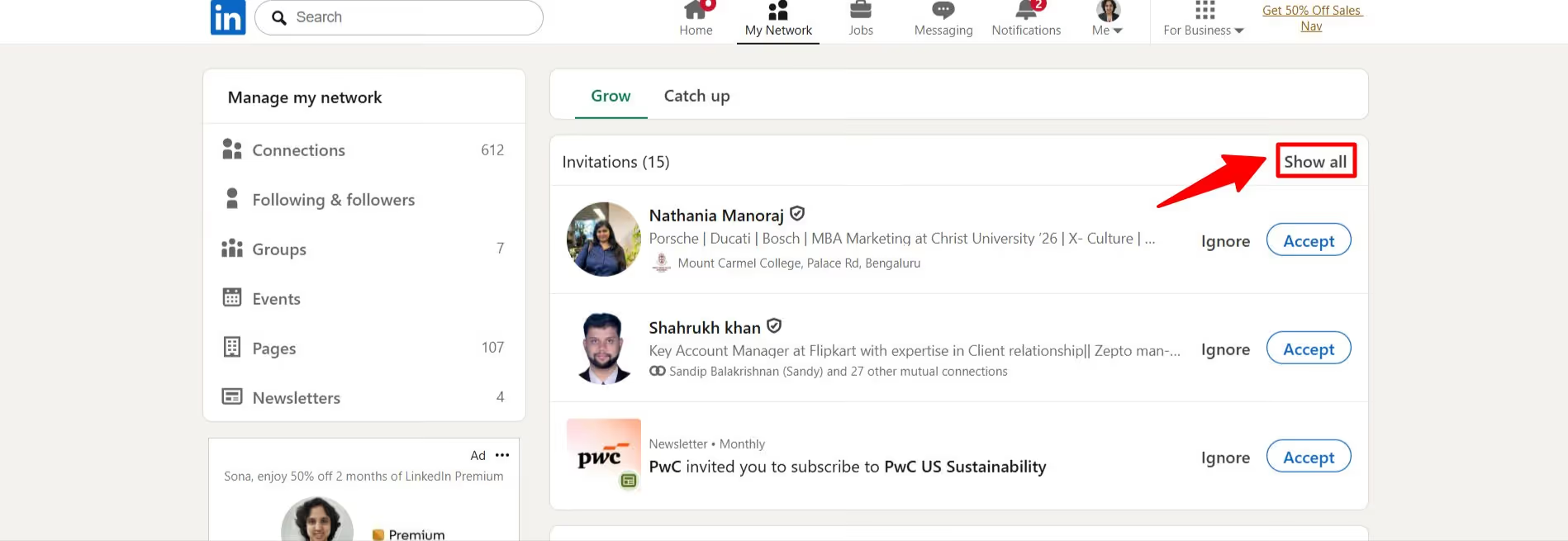
- Select the 'Sent' tab, where you can manage your invitations.

Note:
You’ll see all your pending connection requests here: these are the invitations waiting for responses. Don’t worry, canceling them won’t send any notifications to the recipients!
Once you withdraw a connection request, you cannot resend an invitation to the same person for 3 weeks after withdrawal.
This is LinkedIn's built-in cooling-off period to prevent spam.
So if you're having second thoughts, maybe sleep on it before hitting that withdraw button!

If you're sure, click 'Withdraw' for each individual request manually.
Of course, you'll have to do this manually with each invite.
Imagine how tedious it is to click through dozens of requests manually, especially when they're stacked up from a bulk send. It feels like a never-ending chore.
This is where tools like Outly come in handy. Alongside tons of LinkedIn automation features, you can remove pending requests in bulk.
We'll take a deeper look at this in the upcoming sections.
Withdrawing an invitation was as easy as 1,2,3, right?
But what goes on behind the scenes?
What Happens When You Withdraw Invitations on LinkedIn?
The answer is "No."
However, withdrawing an invitation can have subtle implications for your online persona and future interactions.
The good news is, withdrawing an invitation d oesn't really affect your LinkedIn SSI score or visibility much.
But if you're constantly withdrawing and resending invites, it might suggest you're not being strategic with your networking - definitely not the best look for your brand!
So what should you do?
Here's what we recommend to our clients:
You should withdraw invites that aren't aligned with your goals.
If you need to try again, wait three weeks and make sure your message is personalized and compelling - explain why it makes sense.
This will help avoid unnecessary notifications and keep your networking efforts focused and effective. When you withdraw the request, LinkedIn will no longer send reminder notifications about your initial invitation.
I know what you are thinking next…
Will they know if you withdraw the LinkedIn invitation?
Surprisingly, no one else finds out.
Your connection request just disappears from their pending tab.
LinkedIn's got your back on this one.
So, withdraw the invitation if they don't match your target audience.
After you cancel the invitation, you get a "mission accomplished" alert, and LinkedIn sends you a confirmation email.
And if you did not mean to withdraw one of those invites? I got you.
How to Resend If You Withdraw An Invitation By Mistake?
As you've seen in the confirmation message, you can't resend an invite for 3 weeks.
So the only answer is to just wait.
Be patient.
After 3 weeks, you can just send a connection request normally.
If it’s important, you can always send them a LinkedIn InMail.
Just head to their profile and click on 'Message' if you have LinkedIn Premium (a little golden badge on their profile shows a LinkedIn Premium account) , or if they have an Open Profile.

Can You Withdraw LinkedIn Invitations After 3 Weeks?
The 3-week rule only applies to resending invitations , not withdrawing them!
You can withdraw (cancel) a connection request anytime - whether it's been pending for 3 days or 3 months.
The 3-week rule only kicks in if you want to send a new invitation to the same person after withdrawing.
Let's take a look at…
How to Withdraw LinkedIn Invitations in Bulk?
Suppose you're a recruiter who went all-in on networking , sending out connection requests like there's no tomorrow.
You may have done it yourself, or you used some automation .
Either way, now you're staring at this massive pile of unanswered requests.
We're talking hundreds of them just sitting there!
All those pending invites hanging around do not make your profile look great.
It's like leaving a bunch of unreturned calls on your business line.
Not exactly the professional image you're going for, right?
Now, here's the annoying part - LinkedIn doesn't exactly make it easy to clean this stuff up .
You'd think there'd be a simple "clear all" button, but nope!
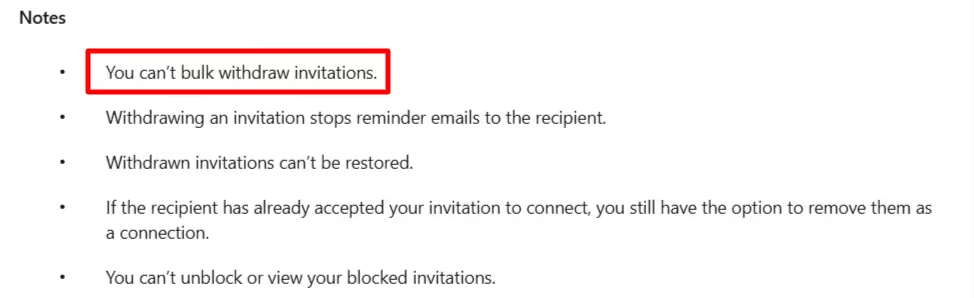
You're stuck removing them one... by... one.
But don't worry, I've got some good news for you!
Outly can help you with that.
Your answer to all LinkedIn + Email automation questions.
You can do it in under 2 minutes; here's how.
- Head to Settings -> Configuration -> Pending Invit
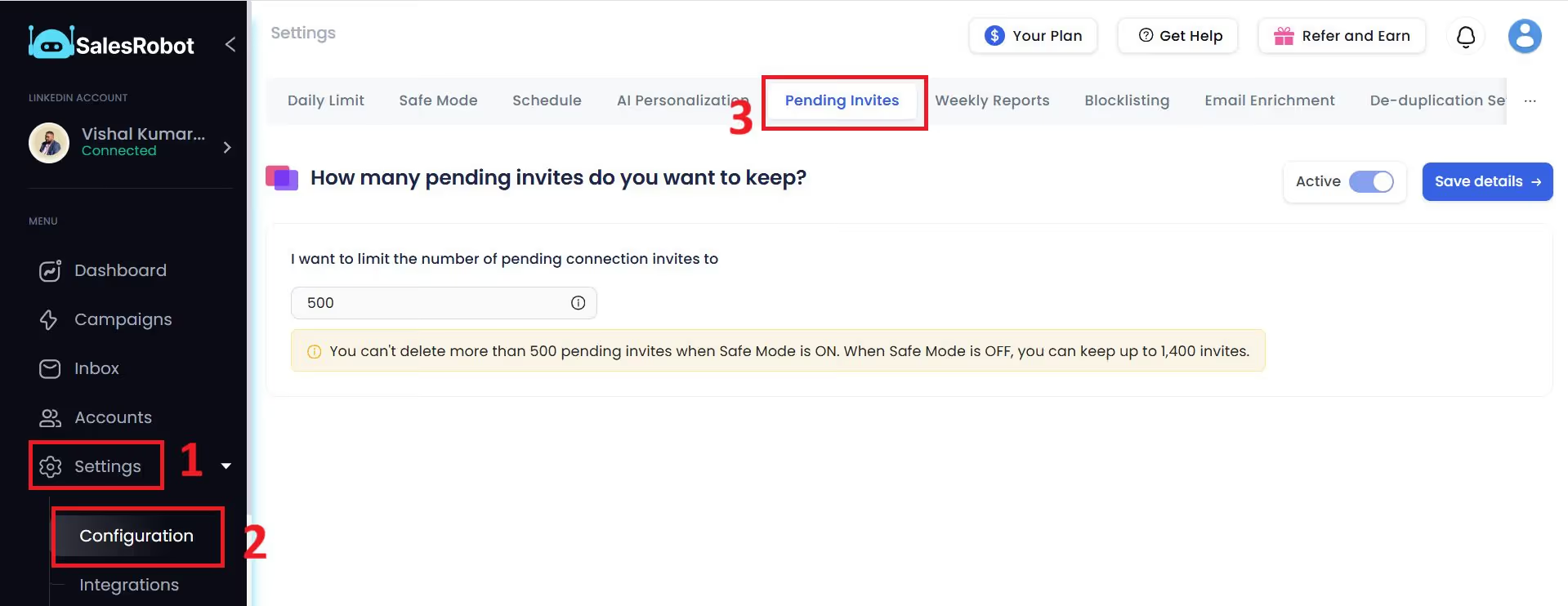
- Enter how many invites you want to keep . Outly will delete them accordingly.
- That's it, your pending requests are clear.
You know what, though?
The real question we need to ask is: Why aren't people accepting your requests in the first place?
Let me break down what I usually see going wrong (and trust me, I've seen it all!):
🛑 First off, your prospect list might be a bit... random . You're reaching out to people who aren't really a good fit.
🛑 Then there are those connection requests. Come on, be honest - are you still using "I'd like to join your professional network on LinkedIn"? That's about as exciting as watching paint dry.
🛑 Another common mistake? Going into full-on blast mode and sending out hundreds of requests at once. LinkedIn will ban you for this.
🛑 And let's talk about your profile for a second. It looks like your profile was last updated when Myspace was still cool, so you might want to give it some love.
What do you think - any of these sound familiar?
Outly is the one-stop answer to all these problems.

It provides,
- AI Apoointment Setter to automate message campaigns and follow-ups and to do outreach without even being there.
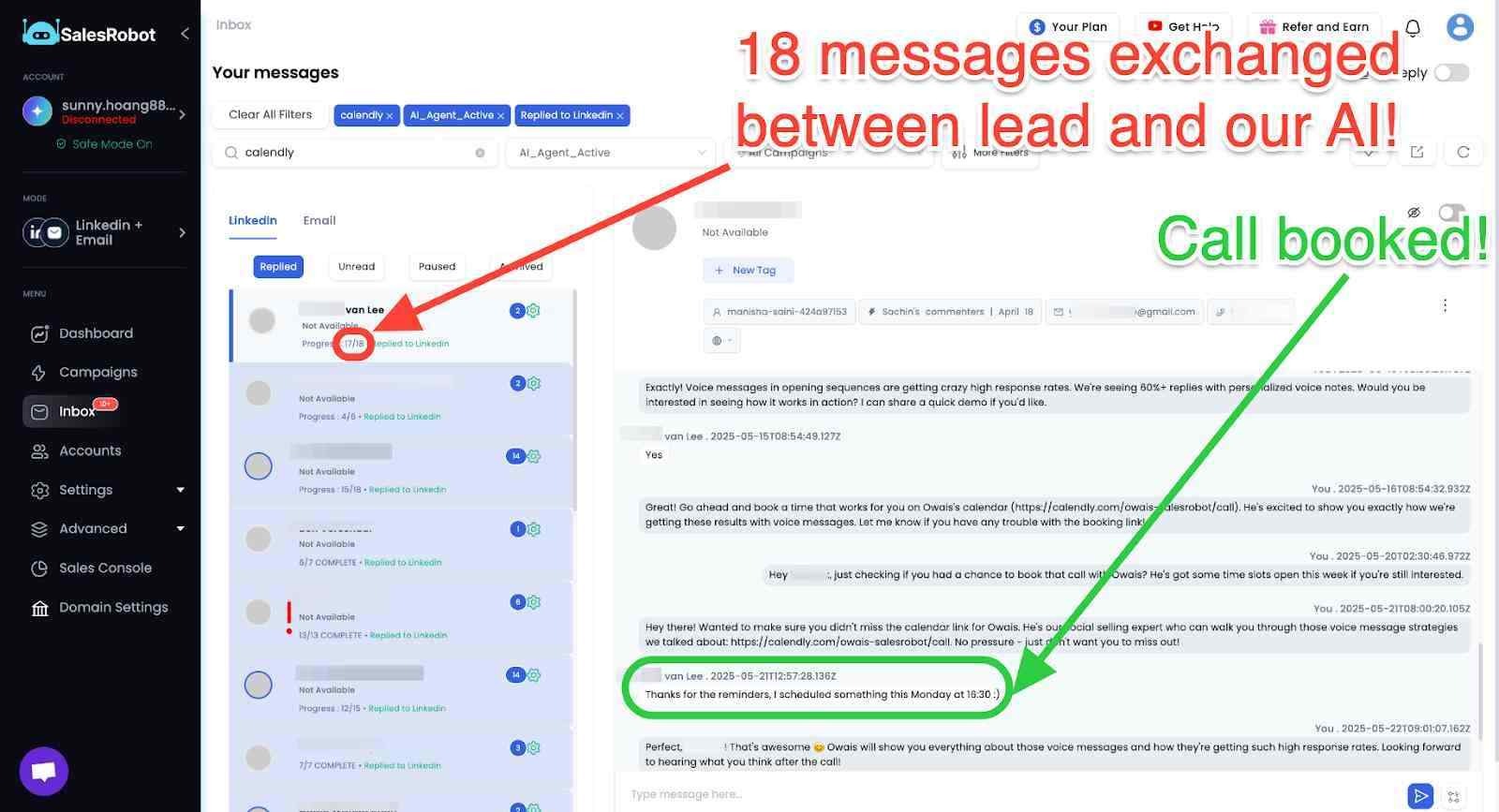
- Hyper-personalized messages to stand out in their inbox.
- Ability to bypass the LinkedIn connection limit safely.
- Free tools to improve your LinkedIn profile.
All of these and much more could be in your hands for just $59/month.
That’s less than your Starbucks fix.
Not sure yet? Just try out a 14-day free trial instead. (We don’t ask for phone number or credit card info)
Happy hunting!
Frequently Asked Questions
There are several reasons why you might not be able to connect with someone on LinkedIn.
You might have reached your weekly connection limit (typically 100-250 requests per week depending on your account type, age and SSI score.
Or you may have hit the 700 pending invitation limit. The person may have privacy settings that restrict new requests.
Or they may have already hit LinkedIn's 30,000 connection limit.
LinkedIn Premium plans include different InMail credits depending on your subscription level.
Premium Career typically includes 5 InMails per month, while Premium Business includes 15 InMails per month.
Sales Navigator and Recruiter plans offer even more InMail credits, with some providing 50+ monthly InMails.
While some services claim to sell LinkedIn accounts with 500+ connections, this violates LinkedIn's Terms of Service and can result in account suspension or permanent bans.
LinkedIn actively monitors for fake accounts and suspicious activity. Instead, focus on building genuine connections through proper networking and engagement strategies.
Wow your leads by cloning yourself and sending personalized videos and voice notes to each lead on LinkedIn.
If you don't reply to leads within 5 mins, your chances of converting them fall by 50%. Our AI replies on your behalf instantly! (and yes, you can train it)
Don't shoot in the dark. Get detailed analytics on what's working
Outly allows you to invite other team members, so that they can add their LinkedIn Account, run outreach campaigns and get amazing results just like you.